# Using the [SO-100](https://github.com/TheRobotStudio/SO-ARM100) with LeRobot
## Table of Contents
- [A. Source the parts](#a-source-the-parts)
- [B. Install LeRobot](#b-install-lerobot)
- [C. Configure the motors](#c-configure-the-motors)
- [D. Assemble the arms](#d-assemble-the-arms)
- [E. Calibrate](#e-calibrate)
- [F. Teleoperate](#f-teleoperate)
- [G. Record a dataset](#g-record-a-dataset)
- [H. Visualize a dataset](#h-visualize-a-dataset)
- [I. Replay an episode](#i-replay-an-episode)
- [J. Train a policy](#j-train-a-policy)
- [K. Evaluate your policy](#k-evaluate-your-policy)
- [L. More Information](#l-more-information)
## A. Source the parts
Follow this [README](https://github.com/TheRobotStudio/SO-ARM100). It contains the bill of materials, with link to source the parts, as well as the instructions to 3D print the parts,
and advices if it's your first time printing or if you don't own a 3D printer.
## B. Install LeRobot
We make heavy use of the Command Prompt (cmd). If you are not comfortable using the cmd or want to brush up using the command line you can have a look here: [Command line crash course](https://developer.mozilla.org/en-US/docs/Learn_web_development/Getting_started/Environment_setup/Command_line)
#### 1. [Install Miniconda](https://docs.anaconda.com/miniconda/install/#):
Windows
Please follow the steps for Windows here: [Install Miniconda Windows](https://docs.anaconda.com/miniconda/install/#):
Mac M-series
```bash
mkdir -p ~/miniconda3
curl https://repo.anaconda.com/miniconda/Miniconda3-latest-MacOSX-arm64.sh -o ~/miniconda3/miniconda.sh
bash ~/miniconda3/miniconda.sh -b -u -p ~/miniconda3
rm ~/miniconda3/miniconda.sh
~/miniconda3/bin/conda init bash
```
Mac Intel
```bash
mkdir -p ~/miniconda3
curl https://repo.anaconda.com/miniconda/Miniconda3-latest-MacOSX-x86_64.sh -o ~/miniconda3/miniconda.sh
bash ~/miniconda3/miniconda.sh -b -u -p ~/miniconda3
rm ~/miniconda3/miniconda.sh
~/miniconda3/bin/conda init bash
```
Linux
```bash
mkdir -p ~/miniconda3
wget https://repo.anaconda.com/miniconda/Miniconda3-latest-Linux-x86_64.sh -O ~/miniconda3/miniconda.sh
bash ~/miniconda3/miniconda.sh -b -u -p ~/miniconda3
rm ~/miniconda3/miniconda.sh
~/miniconda3/bin/conda init bash
```
#### 2. Restart shell
Copy paste in your shell: `source ~/.bashrc` or for Mac: `source ~/.bash_profile` or `source ~/.zshrc` if you're using zshell
#### 3. Create and activate a fresh conda environment for lerobot
```bash
conda create -y -n lerobot python=3.10
```
then activate your conda envoirment (do this each time you open a shell to use lerobot!):
```bash
conda activate lerobot
```
#### 4. Clone LeRobot:
```bash
git clone https://github.com/huggingface/lerobot.git ~/lerobot
```
#### 5. Install LeRobot with dependencies for the feetech motors:
```bash
cd ~/lerobot && pip install -e ".[feetech]"
```
*EXTRA: For Linux only (not Mac)*: install extra dependencies for recording datasets:
```bash
conda install -y -c conda-forge ffmpeg
pip uninstall -y opencv-python
conda install -y -c conda-forge "opencv>=4.10.0"
```
Great :hugs:! You are now done with installing LeRobot and we can begin assembling the SO100 arms. :robot:. Every time you now want to use LeRobot you can go to the folder (/lerobot) where we installed LeRobot via the cmd and run it scripts with the provided command you can find in this document.
## C. Assembling
### 1. Find the USB ports associated to each arm
Designate one bus servo adapter and 6 motors for your leader arm, and similarly the other bus servo adapter and 6 motors for the follower arm. It's convenient to label them and write on each motor if it's for the follower `F` or for the leader `L` and it's ID from 1 to 6 (F1...F6 and L1...L6).
#### a. Run the script to find port
Follow Step 1 of the [assembly video](https://www.youtube.com/watch?v=FioA2oeFZ5I), which illustrates the use of our scripts below.
To find the port for each bus servo adapter, run the utility script:
```bash
python lerobot/scripts/find_motors_bus_port.py
```
#### b. Example outputs
Example output when identifying the leader arm's port (e.g., `/dev/tty.usbmodem575E0031751` on Mac, or possibly `/dev/ttyACM0` on Linux):
```
Finding all available ports for the MotorBus.
['/dev/tty.usbmodem575E0032081', '/dev/tty.usbmodem575E0031751']
Remove the usb cable from your DynamixelMotorsBus and press Enter when done.
[...Disconnect leader arm and press Enter...]
The port of this DynamixelMotorsBus is /dev/tty.usbmodem575E0031751
Reconnect the usb cable.
```
Example output when identifying the follower arm's port (e.g., `/dev/tty.usbmodem575E0032081`, or possibly `/dev/ttyACM1` on Linux):
```
Finding all available ports for the MotorBus.
['/dev/tty.usbmodem575E0032081', '/dev/tty.usbmodem575E0031751']
Remove the usb cable from your DynamixelMotorsBus and press Enter when done.
[...Disconnect follower arm and press Enter...]
The port of this DynamixelMotorsBus is /dev/tty.usbmodem575E0032081
Reconnect the usb cable.
```
#### c. Troubleshooting
On Linux, you might need to give access to the USB ports by running:
```bash
sudo chmod 666 /dev/ttyACM0
sudo chmod 666 /dev/ttyACM1
```
#### d. Update YAML file
Now that you have the ports, modify the *port* sections in `so100.yaml`
### 2. Assembling the Base
Let's begin with assembling the follower arm base
HERE, TODO: Assemble wires in first motor, insert first moter in base and place screws, set if of motor, calibrate that motor, move on to next assmbling, repeat...
#### a. Set IDs for all 12 motors
Plug your first motor F1 and run this script to set its ID to 1. It will also set its present position to 2048, so expect your motor to rotate. Replaxe the text after --port to the corresponding follower control board port and run this command in cmd:
```bash
python lerobot/scripts/configure_motor.py \
--port /dev/tty.usbmodem58760432961 \
--brand feetech \
--model sts3215 \
--baudrate 1000000 \
--ID 1
```
*Note: These motors are currently limitated. They can take values between 0 and 4096 only, which corresponds to a full turn. They can't turn more than that. 2048 is at the middle of this range, so we can take -2048 steps (180 degrees anticlockwise) and reach the maximum range, or take +2048 steps (180 degrees clockwise) and reach the maximum range. The configuration step also sets the homing offset to 0, so that if you misassembled the arm, you can always update the homing offset to account for a shift up to ± 2048 steps (± 180 degrees).*
Then unplug your motor and plug the second motor and set its ID to 2.
```bash
python lerobot/scripts/configure_motor.py \
--port /dev/tty.usbmodem58760432961 \
--brand feetech \
--model sts3215 \
--baudrate 1000000 \
--ID 2
```
Redo the process for all your motors until ID 6. Do the same for the 6 motors of the leader arm.
#### b. Remove the gears of the 6 leader motors
Follow step 2 of the [assembly video](https://youtu.be/FioA2oeFZ5I?t=248). You need to remove the gear for the motors of the leader arm. As a result, you will only use the position encoding of the motor and reduce friction to more easily operate the leader arm.
#### c. Add motor horn to all 12 motors
Follow step 3 of the [assembly video](https://youtu.be/FioA2oeFZ5I?t=569). For SO-100, you need to align the holes on the motor horn to the motor spline to be approximately 1:30, 4:30, 7:30 and 10:30.
Try to avoid rotating the motor while doing so to keep position 2048 set during configuration. It is especially tricky for the leader motors as it is more sensible without the gears, but it's ok if it's a bit rotated.
## D. Assemble the arms
Follow step 4 of the [assembly video](https://youtu.be/FioA2oeFZ5I?t=610). The first arm should take a bit more than 1 hour to assemble, but once you get use to it, you can do it under 1 hour for the second arm.
## E. Calibrate
Next, you'll need to calibrate your SO-100 robot to ensure that the leader and follower arms have the same position values when they are in the same physical position. This calibration is essential because it allows a neural network trained on one SO-100 robot to work on another.
#### a. Manual calibration of follower arm
/!\ Contrarily to step 6 of the [assembly video](https://youtu.be/FioA2oeFZ5I?t=724) which illustrates the auto calibration, we will actually do manual calibration of follower for now.
You will need to move the follower arm to these positions sequentially:
| 1. Zero position | 2. Rotated position | 3. Rest position |
|---|---|---|
| 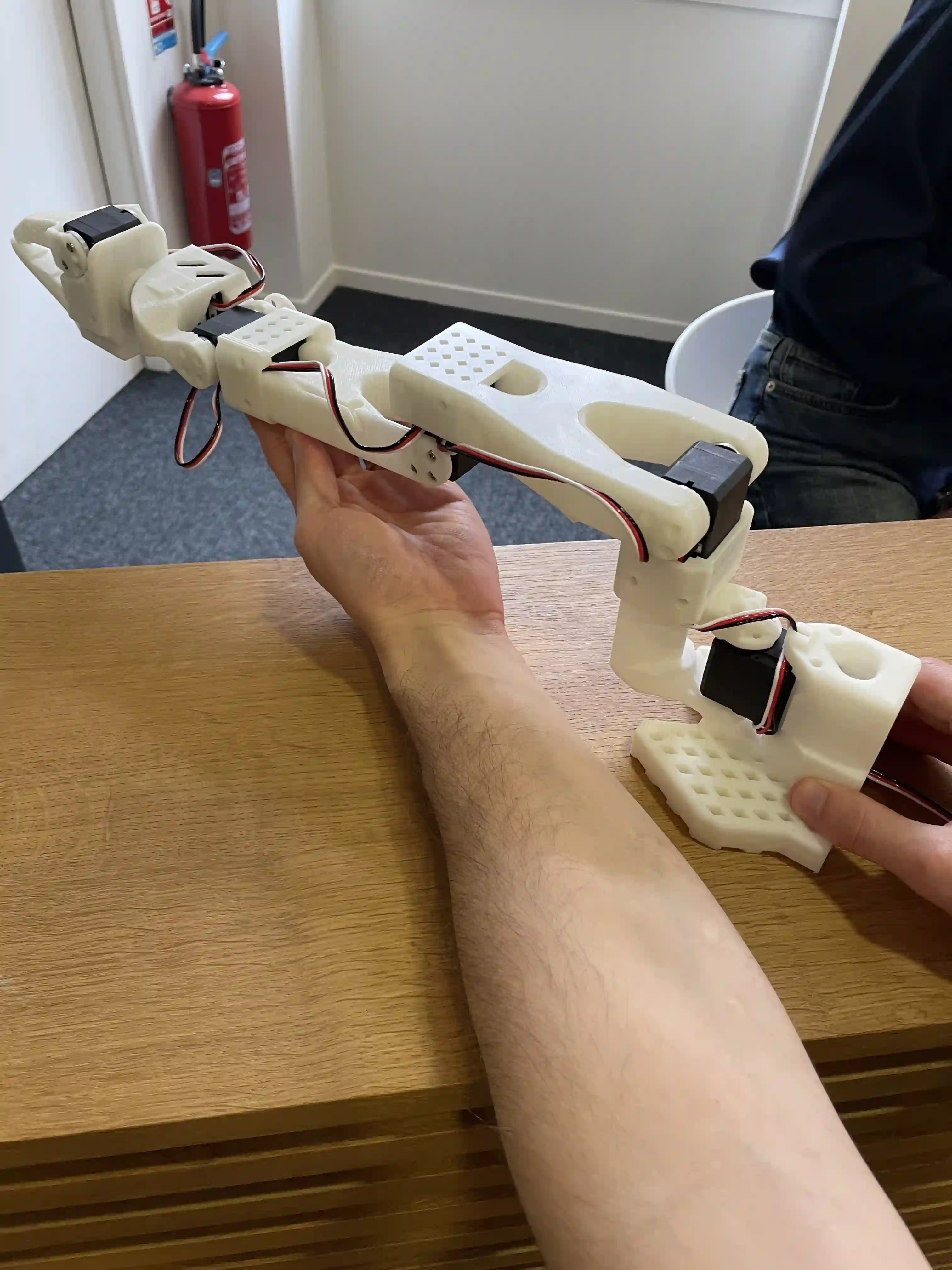 |
| 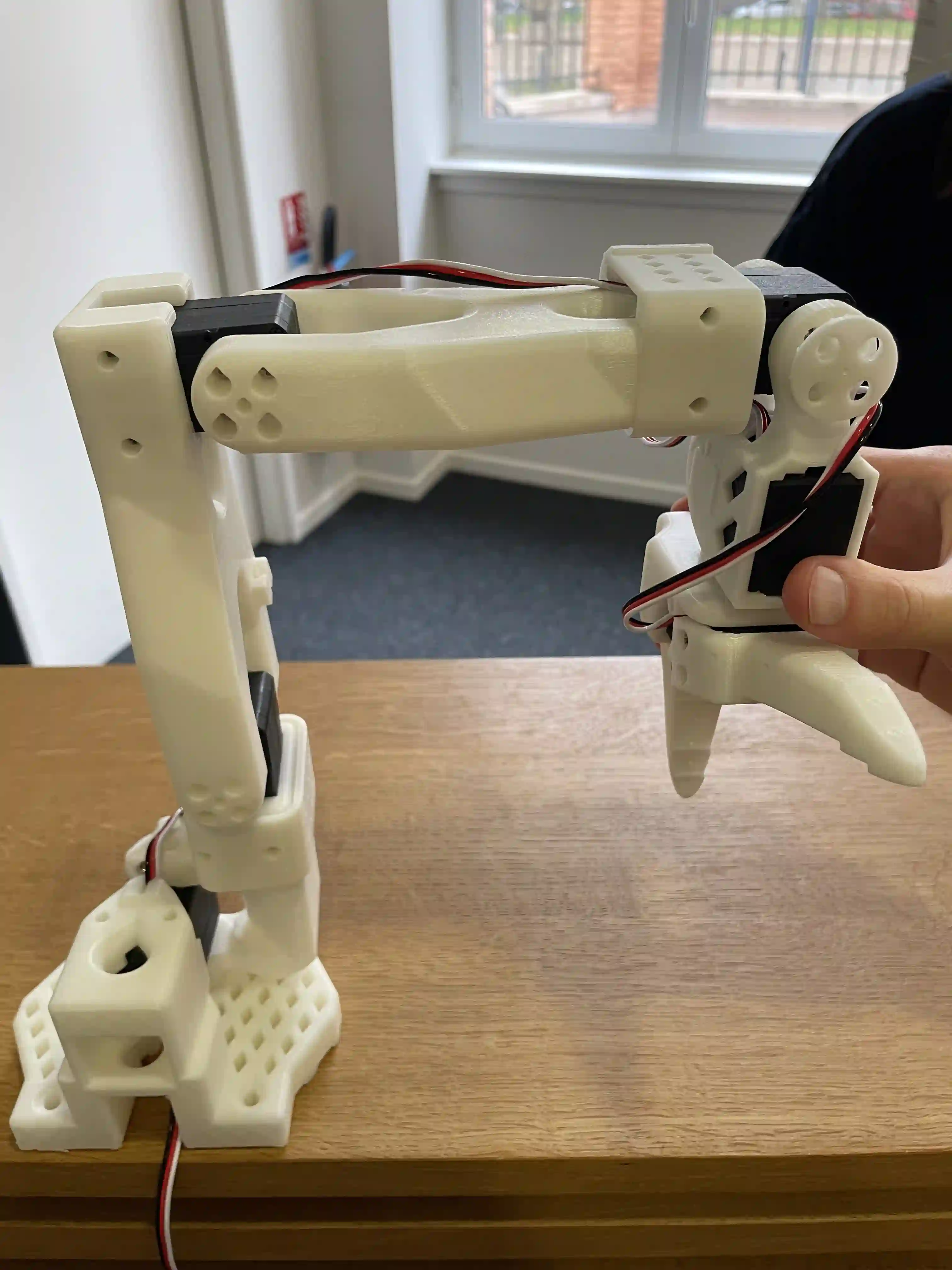 |
| 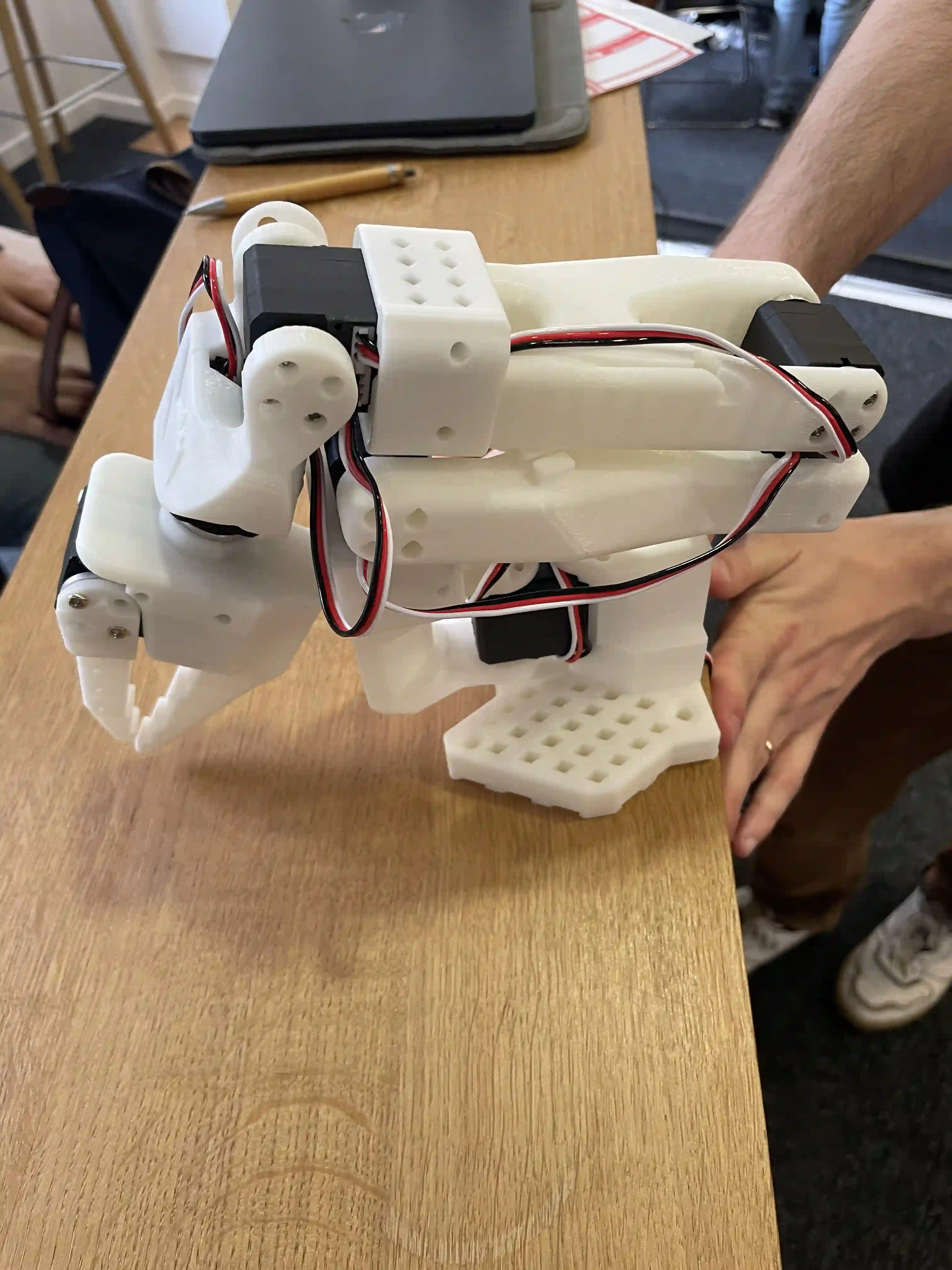 |
Make sure both arms are connected and run this script to launch manual calibration:
```bash
python lerobot/scripts/control_robot.py calibrate \
--robot-path lerobot/configs/robot/so100.yaml \
--robot-overrides '~cameras' --arms main_follower
```
#### b. Manual calibration of leader arm
Follow step 6 of the [assembly video](https://youtu.be/FioA2oeFZ5I?t=724) which illustrates the manual calibration. You will need to move the leader arm to these positions sequentially:
| 1. Zero position | 2. Rotated position | 3. Rest position |
|---|---|---|
|
|
Make sure both arms are connected and run this script to launch manual calibration:
```bash
python lerobot/scripts/control_robot.py calibrate \
--robot-path lerobot/configs/robot/so100.yaml \
--robot-overrides '~cameras' --arms main_follower
```
#### b. Manual calibration of leader arm
Follow step 6 of the [assembly video](https://youtu.be/FioA2oeFZ5I?t=724) which illustrates the manual calibration. You will need to move the leader arm to these positions sequentially:
| 1. Zero position | 2. Rotated position | 3. Rest position |
|---|---|---|
| 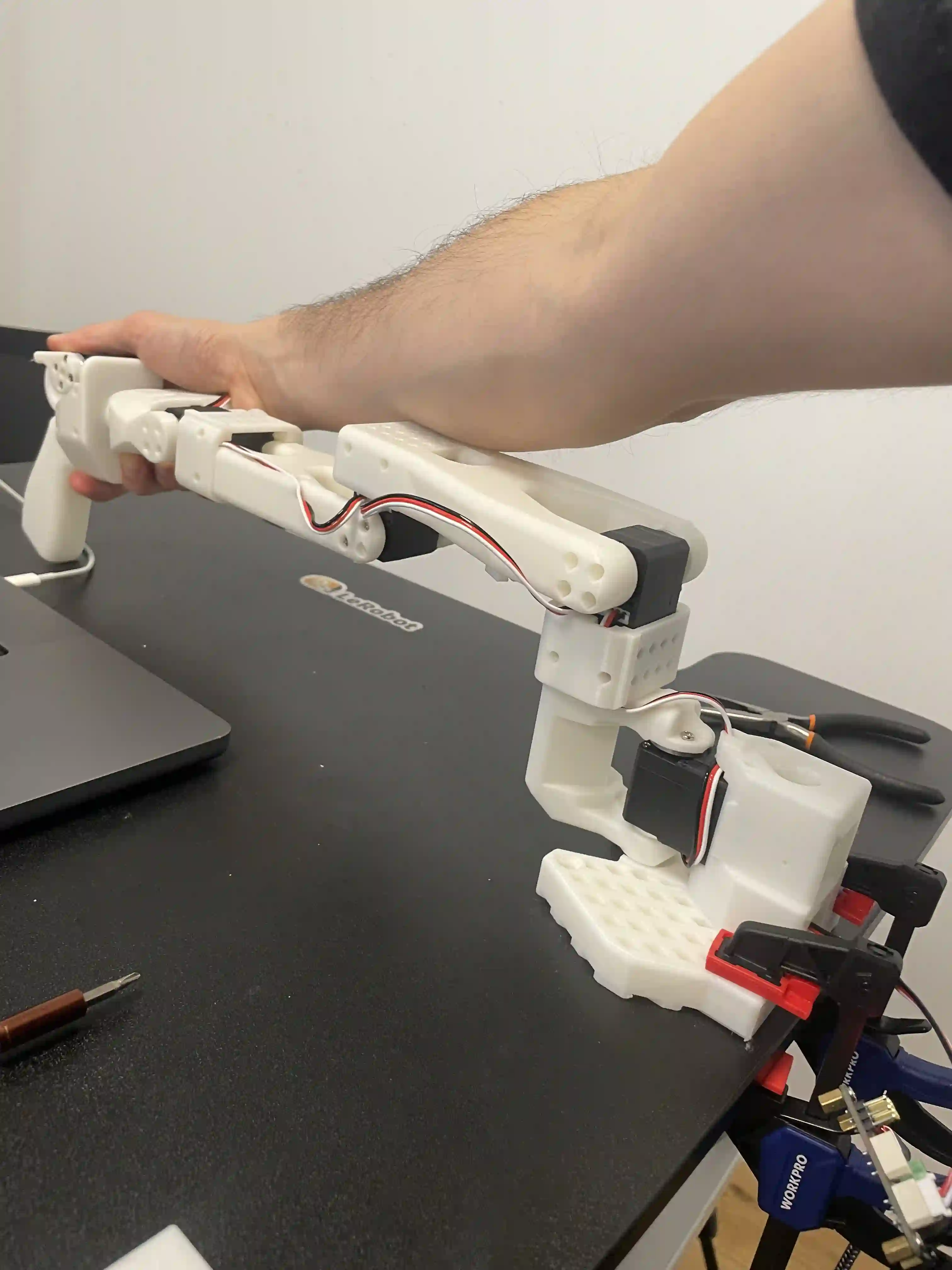 |
|  |
| 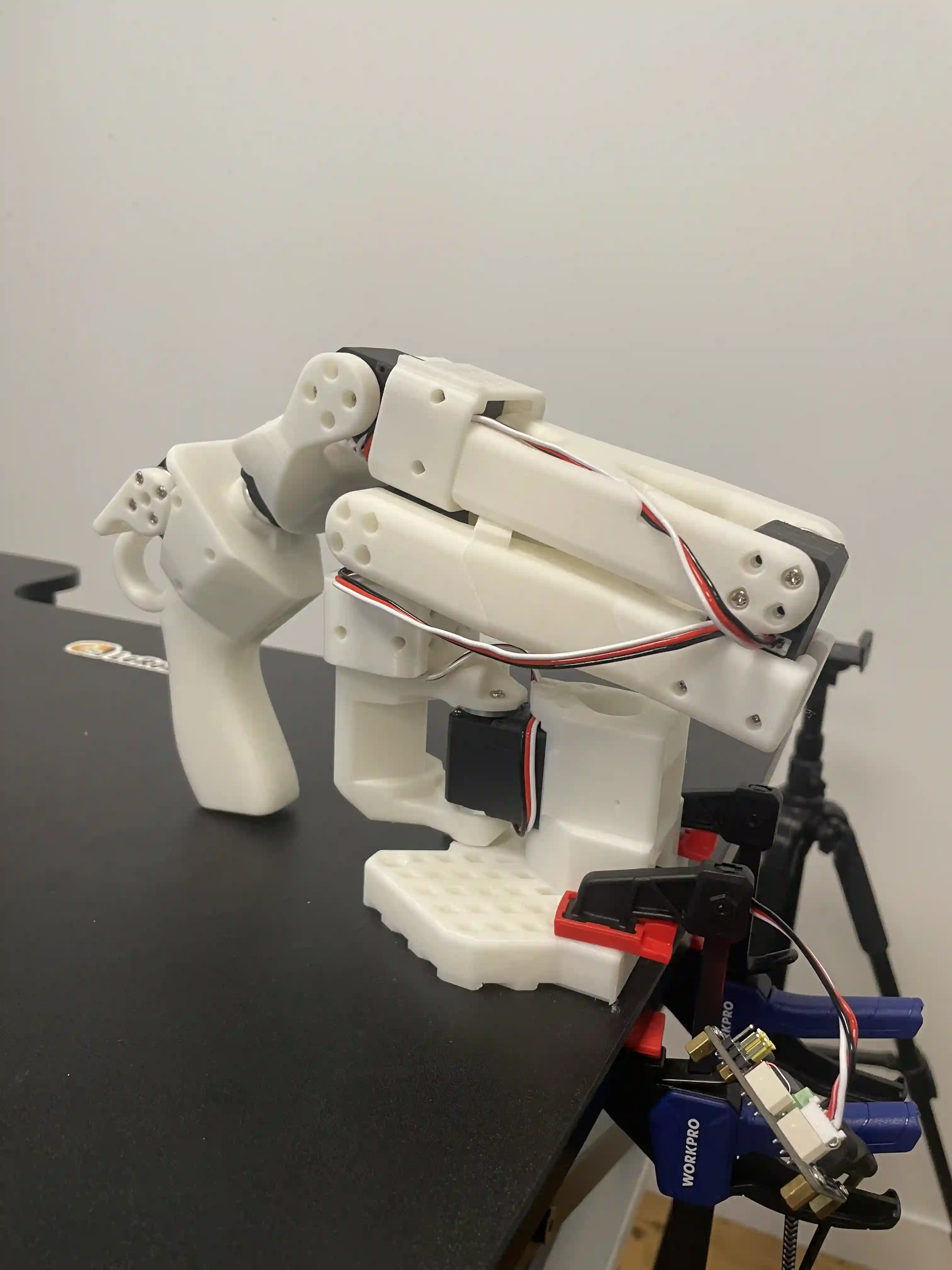 |
Run this script to launch manual calibration:
```bash
python lerobot/scripts/control_robot.py calibrate \
--robot-path lerobot/configs/robot/so100.yaml \
--robot-overrides '~cameras' --arms main_leader
```
## F. Teleoperate
**Simple teleop**
Then you are ready to teleoperate your robot! Run this simple script (it won't connect and display the cameras):
```bash
python lerobot/scripts/control_robot.py teleoperate \
--robot-path lerobot/configs/robot/so100.yaml \
--robot-overrides '~cameras' \
--display-cameras 0
```
#### a. Teleop with displaying cameras
Follow [this guide to setup your cameras](https://github.com/huggingface/lerobot/blob/main/examples/7_get_started_with_real_robot.md#c-add-your-cameras-with-opencvcamera). Then you will be able to display the cameras on your computer while you are teleoperating by running the following code. This is useful to prepare your setup before recording your first dataset.
```bash
python lerobot/scripts/control_robot.py teleoperate \
--robot-path lerobot/configs/robot/so100.yaml
```
## G. Record a dataset
Once you're familiar with teleoperation, you can record your first dataset with SO-100.
If you want to use the Hugging Face hub features for uploading your dataset and you haven't previously done it, make sure you've logged in using a write-access token, which can be generated from the [Hugging Face settings](https://huggingface.co/settings/tokens):
```bash
huggingface-cli login --token ${HUGGINGFACE_TOKEN} --add-to-git-credential
```
Store your Hugging Face repository name in a variable to run these commands:
```bash
HF_USER=$(huggingface-cli whoami | head -n 1)
echo $HF_USER
```
Record 2 episodes and upload your dataset to the hub:
```bash
python lerobot/scripts/control_robot.py record \
--robot-path lerobot/configs/robot/so100.yaml \
--fps 30 \
--repo-id ${HF_USER}/so100_test \
--tags so100 tutorial \
--warmup-time-s 5 \
--episode-time-s 40 \
--reset-time-s 10 \
--num-episodes 2 \
--push-to-hub 1
```
## H. Visualize a dataset
If you uploaded your dataset to the hub with `--push-to-hub 1`, you can [visualize your dataset online](https://huggingface.co/spaces/lerobot/visualize_dataset) by copy pasting your repo id given by:
```bash
echo ${HF_USER}/so100_test
```
If you didn't upload with `--push-to-hub 0`, you can also visualize it locally with:
```bash
python lerobot/scripts/visualize_dataset_html.py \
--repo-id ${HF_USER}/so100_test
```
## I. Replay an episode
Now try to replay the first episode on your robot:
```bash
python lerobot/scripts/control_robot.py replay \
--robot-path lerobot/configs/robot/so100.yaml \
--fps 30 \
--repo-id ${HF_USER}/so100_test \
--episode 0
```
## J. Train a policy
To train a policy to control your robot, use the [`python lerobot/scripts/train.py`](../lerobot/scripts/train.py) script. A few arguments are required. Here is an example command:
```bash
python lerobot/scripts/train.py \
dataset_repo_id=${HF_USER}/so100_test \
policy=act_so100_real \
env=so100_real \
hydra.run.dir=outputs/train/act_so100_test \
hydra.job.name=act_so100_test \
device=cuda \
wandb.enable=true
```
Let's explain it:
1. We provided the dataset as argument with `dataset_repo_id=${HF_USER}/so100_test`.
2. We provided the policy with `policy=act_so100_real`. This loads configurations from [`lerobot/configs/policy/act_so100_real.yaml`](../lerobot/configs/policy/act_so100_real.yaml). Importantly, this policy uses 2 cameras as input `laptop`, `phone`.
3. We provided an environment as argument with `env=so100_real`. This loads configurations from [`lerobot/configs/env/so100_real.yaml`](../lerobot/configs/env/so100_real.yaml).
4. We provided `device=cuda` since we are training on a Nvidia GPU, but you can also use `device=mps` if you are using a Mac with Apple silicon, or `device=cpu` otherwise.
5. We provided `wandb.enable=true` to use [Weights and Biases](https://docs.wandb.ai/quickstart) for visualizing training plots. This is optional but if you use it, make sure you are logged in by running `wandb login`.
Training should take several hours. You will find checkpoints in `outputs/train/act_so100_test/checkpoints`.
## K. Evaluate your policy
You can use the `record` function from [`lerobot/scripts/control_robot.py`](../lerobot/scripts/control_robot.py) but with a policy checkpoint as input. For instance, run this command to record 10 evaluation episodes:
```bash
python lerobot/scripts/control_robot.py record \
--robot-path lerobot/configs/robot/so100.yaml \
--fps 30 \
--repo-id ${HF_USER}/eval_act_so100_test \
--tags so100 tutorial eval \
--warmup-time-s 5 \
--episode-time-s 40 \
--reset-time-s 10 \
--num-episodes 10 \
-p outputs/train/act_so100_test/checkpoints/last/pretrained_model
```
As you can see, it's almost the same command as previously used to record your training dataset. Two things changed:
1. There is an additional `-p` argument which indicates the path to your policy checkpoint with (e.g. `-p outputs/train/eval_so100_test/checkpoints/last/pretrained_model`). You can also use the model repository if you uploaded a model checkpoint to the hub (e.g. `-p ${HF_USER}/act_so100_test`).
2. The name of dataset begins by `eval` to reflect that you are running inference (e.g. `--repo-id ${HF_USER}/eval_act_so100_test`).
## L. More Information
Follow this [previous tutorial](https://github.com/huggingface/lerobot/blob/main/examples/7_get_started_with_real_robot.md#4-train-a-policy-on-your-data) for a more in-depth tutorial on controlling real robots with LeRobot.
If you have any question or need help, please reach out on Discord in the channel [`#so100-arm`](https://discord.com/channels/1216765309076115607/1237741463832363039).
> [!NOTE]
> Useful information that users should know, even when skimming content.
> [!TIP]
> Helpful advice for doing things better or more easily.
> [!IMPORTANT]
> Key information users need to know to achieve their goal.
> [!WARNING]
> Urgent info that needs immediate user attention to avoid problems.
> [!CAUTION]
> Advises about risks or negative outcomes of certain actions.
|
Run this script to launch manual calibration:
```bash
python lerobot/scripts/control_robot.py calibrate \
--robot-path lerobot/configs/robot/so100.yaml \
--robot-overrides '~cameras' --arms main_leader
```
## F. Teleoperate
**Simple teleop**
Then you are ready to teleoperate your robot! Run this simple script (it won't connect and display the cameras):
```bash
python lerobot/scripts/control_robot.py teleoperate \
--robot-path lerobot/configs/robot/so100.yaml \
--robot-overrides '~cameras' \
--display-cameras 0
```
#### a. Teleop with displaying cameras
Follow [this guide to setup your cameras](https://github.com/huggingface/lerobot/blob/main/examples/7_get_started_with_real_robot.md#c-add-your-cameras-with-opencvcamera). Then you will be able to display the cameras on your computer while you are teleoperating by running the following code. This is useful to prepare your setup before recording your first dataset.
```bash
python lerobot/scripts/control_robot.py teleoperate \
--robot-path lerobot/configs/robot/so100.yaml
```
## G. Record a dataset
Once you're familiar with teleoperation, you can record your first dataset with SO-100.
If you want to use the Hugging Face hub features for uploading your dataset and you haven't previously done it, make sure you've logged in using a write-access token, which can be generated from the [Hugging Face settings](https://huggingface.co/settings/tokens):
```bash
huggingface-cli login --token ${HUGGINGFACE_TOKEN} --add-to-git-credential
```
Store your Hugging Face repository name in a variable to run these commands:
```bash
HF_USER=$(huggingface-cli whoami | head -n 1)
echo $HF_USER
```
Record 2 episodes and upload your dataset to the hub:
```bash
python lerobot/scripts/control_robot.py record \
--robot-path lerobot/configs/robot/so100.yaml \
--fps 30 \
--repo-id ${HF_USER}/so100_test \
--tags so100 tutorial \
--warmup-time-s 5 \
--episode-time-s 40 \
--reset-time-s 10 \
--num-episodes 2 \
--push-to-hub 1
```
## H. Visualize a dataset
If you uploaded your dataset to the hub with `--push-to-hub 1`, you can [visualize your dataset online](https://huggingface.co/spaces/lerobot/visualize_dataset) by copy pasting your repo id given by:
```bash
echo ${HF_USER}/so100_test
```
If you didn't upload with `--push-to-hub 0`, you can also visualize it locally with:
```bash
python lerobot/scripts/visualize_dataset_html.py \
--repo-id ${HF_USER}/so100_test
```
## I. Replay an episode
Now try to replay the first episode on your robot:
```bash
python lerobot/scripts/control_robot.py replay \
--robot-path lerobot/configs/robot/so100.yaml \
--fps 30 \
--repo-id ${HF_USER}/so100_test \
--episode 0
```
## J. Train a policy
To train a policy to control your robot, use the [`python lerobot/scripts/train.py`](../lerobot/scripts/train.py) script. A few arguments are required. Here is an example command:
```bash
python lerobot/scripts/train.py \
dataset_repo_id=${HF_USER}/so100_test \
policy=act_so100_real \
env=so100_real \
hydra.run.dir=outputs/train/act_so100_test \
hydra.job.name=act_so100_test \
device=cuda \
wandb.enable=true
```
Let's explain it:
1. We provided the dataset as argument with `dataset_repo_id=${HF_USER}/so100_test`.
2. We provided the policy with `policy=act_so100_real`. This loads configurations from [`lerobot/configs/policy/act_so100_real.yaml`](../lerobot/configs/policy/act_so100_real.yaml). Importantly, this policy uses 2 cameras as input `laptop`, `phone`.
3. We provided an environment as argument with `env=so100_real`. This loads configurations from [`lerobot/configs/env/so100_real.yaml`](../lerobot/configs/env/so100_real.yaml).
4. We provided `device=cuda` since we are training on a Nvidia GPU, but you can also use `device=mps` if you are using a Mac with Apple silicon, or `device=cpu` otherwise.
5. We provided `wandb.enable=true` to use [Weights and Biases](https://docs.wandb.ai/quickstart) for visualizing training plots. This is optional but if you use it, make sure you are logged in by running `wandb login`.
Training should take several hours. You will find checkpoints in `outputs/train/act_so100_test/checkpoints`.
## K. Evaluate your policy
You can use the `record` function from [`lerobot/scripts/control_robot.py`](../lerobot/scripts/control_robot.py) but with a policy checkpoint as input. For instance, run this command to record 10 evaluation episodes:
```bash
python lerobot/scripts/control_robot.py record \
--robot-path lerobot/configs/robot/so100.yaml \
--fps 30 \
--repo-id ${HF_USER}/eval_act_so100_test \
--tags so100 tutorial eval \
--warmup-time-s 5 \
--episode-time-s 40 \
--reset-time-s 10 \
--num-episodes 10 \
-p outputs/train/act_so100_test/checkpoints/last/pretrained_model
```
As you can see, it's almost the same command as previously used to record your training dataset. Two things changed:
1. There is an additional `-p` argument which indicates the path to your policy checkpoint with (e.g. `-p outputs/train/eval_so100_test/checkpoints/last/pretrained_model`). You can also use the model repository if you uploaded a model checkpoint to the hub (e.g. `-p ${HF_USER}/act_so100_test`).
2. The name of dataset begins by `eval` to reflect that you are running inference (e.g. `--repo-id ${HF_USER}/eval_act_so100_test`).
## L. More Information
Follow this [previous tutorial](https://github.com/huggingface/lerobot/blob/main/examples/7_get_started_with_real_robot.md#4-train-a-policy-on-your-data) for a more in-depth tutorial on controlling real robots with LeRobot.
If you have any question or need help, please reach out on Discord in the channel [`#so100-arm`](https://discord.com/channels/1216765309076115607/1237741463832363039).
> [!NOTE]
> Useful information that users should know, even when skimming content.
> [!TIP]
> Helpful advice for doing things better or more easily.
> [!IMPORTANT]
> Key information users need to know to achieve their goal.
> [!WARNING]
> Urgent info that needs immediate user attention to avoid problems.
> [!CAUTION]
> Advises about risks or negative outcomes of certain actions.
Centered