
Server setup
This README is useful if you want to set up your own machine for the environment. This README is not yet finished. Please contact the author if you need any assistance.
Configuration Overview
The following sections contain guidelines for configuring the system image to ensure benchmark examples can run properly.
The main configuration requirements include:
-
Account Credentials: Our benchmark configurations are based on specific username and password settings (with username
userand passwordpassword). Please ensure these settings remain consistent or update the corresponding configuration files. -
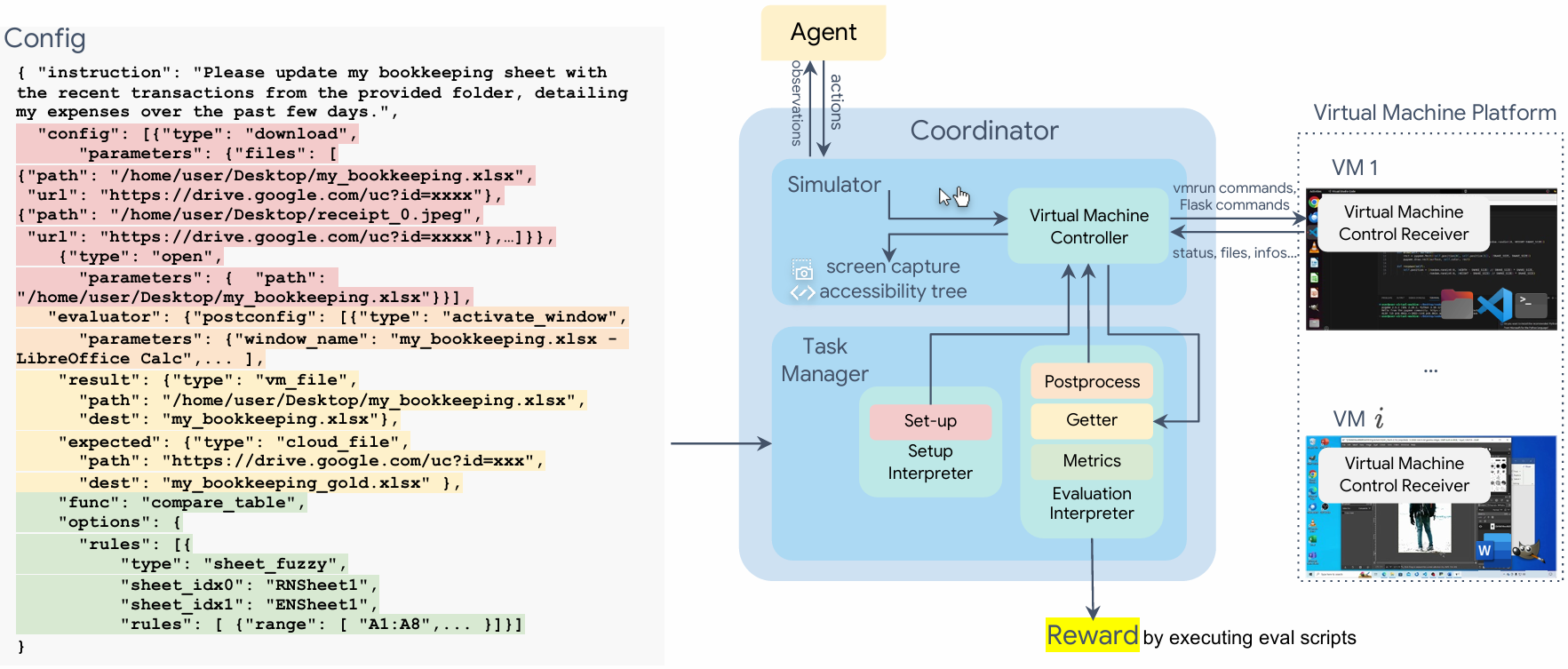
Service Setup: Our environment operates through a service that automatically starts at boot time, as shown in the figure below. The service needs to be properly configured and placed.
-
Accessibility Tree Support:
Benchmark examples rely on accessibility tree functionality. The necessary support packages need to be installed. -
System Service Management:
Certain system services that may cause interference need to be disabled, such as automatic updates and notification pop-ups. -
Required Software Installation:
Ensure all necessary software packages required by the benchmark examples are properly installed. -
Software Configuration: Various software packages require specific configurations, such as disabling certain auto-save features or installing additional plugins.
-
Port Configuration: To monitor and control software states from the host machine, specific port configurations are needed for various applications.
-
Miscellaneous Settings: Additional system-specific settings need to be configured, such as desktop environment settings and display resolution.
Detailed instructions for each of these requirements will be provided in the following sections.
Ubuntu
Make a new VM with the Ubuntu 20.04 LTS image.
Account Credentials
Download the iso file from the Ubuntu website and install it in the VM.
The default username should be user and the password should be password when you are asked to set up the account.
Installation and Auto-login Setup
-
Download the iso file from the Ubuntu website and install it in the VM. The default username should be
userand the password should bepasswordwhen you are asked to set up the account. -
To enable automatic login:
Using GUI:
# Open Settings -> Users
# Click Unlock button and enter password
# Toggle "Automatic Login" to ON for user 'user'
Or using Command Line:
# Edit the custom configuration file
sudo nano /etc/gdm3/custom.conf

# Under [daemon] section, add or modify these lines:
AutomaticLoginEnable=true
AutomaticLogin=user

# Save the file and restart the system
sudo systemctl restart gdm3
After setting up automatic login, the system will boot directly into the desktop environment without requiring password input, which enables seamless startup experience for automated testing environments.
Set up the OSWorld server service in VM
-
Copy the
main.pyandpyxcursor.pyand to the/home/user-namewhere theuser-nameis your username of the ubuntu, here we make ituseras default. If you customize the path of placing these files in this step, you should change the parameters in the service file we will mention later accordingly. -
First please set up the environment:
pip install -r requirements.txtif you customize the environment in this step, you should change the parameters in the service file we will mention later accordingly.
-
Copy the
osworld_server.serviceto the systemd configuration directory at/etc/systemd/system/:sudo cp osworld_server.service /etc/systemd/system/Reload the systemd daemon to recognize the new service:
sudo systemctl daemon-reloadEnable the service to start on boot:
sudo systemctl enable osworld_server.serviceStart the service:
sudo systemctl start osworld_server.serviceVerify the service is running correctly:
sudo systemctl status osworld_server.serviceYou should see output indicating the service is active and running. If there are errors, review the logs with
journalctl -xefor further troubleshooting.If you need to make adjustments to the service configuration, you can edit the
/etc/systemd/system/osworld_server.servicefile:sudo nano /etc/systemd/system/osworld_server.serviceAfter making changes, reload the daemon and restart the service:
sudo systemctl
Accessibility Tree Support
To support the accessibility tree functionality, you'll need to install pyastpi2 in your Ubuntu environment. This package enables access to accessibility information and tree structures.
Installation steps:
# Update package list and ensure pip is installed
sudo apt-get update
sudo apt-get install python3-pip

# Install pyastpi2 using pip
pip3 install pyastpi2
Xorg Configuration
Regarding the graphics display system, we need to ensure that Ubuntu displays images using the Xorg protocol instead of Wayland. Since Wayland is typically the default setting for Ubuntu, we will need to manually change the settings.
- Click the user menu in the upper right corner and select "Log Out" or "Sign Off."
- On the login screen, click on the username.
- Before entering the password, click the gear icon in the lower right or upper right corner of the screen (it may need to be displayed after clicking the username first).
- Select "Ubuntu on Xorg" from the pop-up menu.
You can run the following command to check if Xorg is being used:
echo $XDG_SESSION_TYPE
System Service Management (Optional)
The automatic software update service can interfere with benchmark examples. To disable this service, you can refer to the https://www.makeuseof.com/disable-automatic-updates-in-ubuntu/ for the solution.
You can check and manage system services using systemctl commands. For example, to verify if a service like unattended-upgrades is installed and running on your system:
# Check service status
sudo systemctl status unattended-upgrades.service
If the output is x11, it means you have switched to Xorg.
To disable a system service:
# Disable and stop the service
sudo systemctl disable unattended-upgrades
sudo systemctl stop unattended-upgrades
To verify service configurations, you can use apt-config:
# Check current configurations
apt-config dump APT::Periodic::Update-Package-Lists
apt-config dump APT::Periodic::Unattended-Upgrade
Software Installation
Software Installation Source
Since for some examples like change the settings of certain software, we hardcode some paths in our evaluation file, which means you need to install the software to the specific path. Here we provide a list of software that you need to install and the certain source which default the path you should install them to.
- Chrome: If you are using ARM System, download the chromium using
sudo snap install chromiumand make sure your Chromium config files are under~/snap/chromium; otherwise, download the chrome from the Chromium and make sure your Chromium config files are under~/.config/google-chrome. - LibreOffice: Go to LibreOffice Website, select "Download Libreoffice", select "older versions" in the bottom of the page, and download
7.3.7.2version. - GIMP: Search "GIMP" in "Ubuntu Software" and install it. Our GIMP version is
2.10.30. - VLC: Search "VLC" in "Ubuntu Software" and install it. Our VLC version is
3.0.16. - VSCode: Go to VSCode Website, download the
.debfile, and install it. Our VSCode version is1.91.1.
Additional Inner Software Installation
LibreOffice font installation
Some examples in LibreOffice Impress use non-default system fonts, and you need to download the corresponding TTF files and put them in the system fonts directory. Here is a list of font names you need to install.
Customized Plugin Installation
VS Code plugin installation: To extract relevant internal information and configurations from the VS Code environment, we principally leverage the capabilities offered by the VS Code Extension API. Here's how to install the extension developed by ourselves:
1. Download the extension from: https://github.com/xlang-ai/OSWorld/blob/04a9df627c7033fab991806200877a655e895bfd/vscodeEvalExtension/eval-0.0.1.vsix
2. Open VS Code
3. Go to Extensions -> ... -> Install from VSIX... -> choose the downloaded eval-0.0.1.vsix file
Software Configuration
- LibreOffice Default Format Settings:
# Open LibreOffice Writer
# Go to Tools -> Options -> Load/Save -> General
# Under "Default file format and ODF settings":
# Change "Document type" to "Text document"
# Set "Always save as" to "Microsoft Word 2007-2013 XML (.docx)"
# Repeat similar steps for Calc (.xlsx) and Impress (.pptx)
- GIMP Startup Settings:
# Open GIMP
# Go to Edit -> Preferences -> Interface
# Under "Window Management":
# Uncheck "Show tips on startup"
# Under "File Saving":
# Uncheck "Show warning when saving images that will result in information loss"
- Chrome password requirement removal: Chrome requests a password input when first opened after system startup, which can interfere with our experiments. Here's how to disable this feature:
Using Terminal
# Remove the default keyring
rm -rf ~/.local/share/keyrings/*

# Create empty keyring
echo -n "" >> ~/.local/share/keyrings/login.keyring

# Restart Chrome after applying changes

# Alternative Method: Disable keyring service
sudo apt remove gnome-keyring

# Or just prevent Chrome from using keyring
mkdir -p ~/.local/share/keyrings
touch ~/.local/share/keyrings/login.keyring
Or you can use any ways to disable the keyring service, which will prevent Chrome from requesting a password input.
Network Configuration
socat Installation
Ensure socat is installed to enable port forwarding.
sudo apt install socat
Network Configuration for Remote Control
VLC Configuration
To enable remote control of VLC media player, follow these configuration steps:
- Enable HTTP interface:
# Open VLC
# Go to Tools -> Preferences
# Show Settings: All (bottom left)
# Navigate to Interface -> Main interfaces
# Check 'Web' option
- Configure HTTP interface settings:
# Still in Preferences
# Navigate to Interface -> Main interfaces -> Lua
# Under Lua HTTP:
# - Set Password to 'password'
# - Keep port as 8080 (default)
# - Ensure 'Lua interface' is checked
Chrome Configuration
To ensure Chrome uses consistent debugging ports even after being closed and reopened, follow these steps:
- Create or edit Chrome desktop entry:
sudo nano /usr/share/applications/google-chrome.desktop
- Modify the Exec lines to include debugging port:
# Find lines starting with "Exec=" and add the following flags:
--remote-debugging-port=1337 --remote-debugging-address=0.0.0.0
In cases where need Chrome, the 1337 will be forwarded to 9222 in the virtual machine via socat.
Miscellaneous Settings
Screen Resolution
The required screen resolution for the virtual machine is 1920x1080 in OSWorld and we did make some hardcode related to this resolution in our configuration file in some examples, but only a few. So please set the screen resolution to 1920x1080 in the virtual machine settings.
Automatic Suspend
To close automatic suspend, open Setting app and enter "Power" section. Switch "Screen Blank" to "Never" and "Automatic Suspend" to "Off".
Additional Installation
Activating the window manager control requires the installation of wmctrl:
sudo apt install wmctrl
Otherwise, you cannot control the window manager in the virtual machine when running the experiments. Some cases will be effected.
To enable recording in the virtual machine, you need to install ffmpeg:
sudo apt install ffmpeg
Otherwise you cannot get the video recording of the virtual machine when running the experiments.
Others Information
About the Converted Accessibility Tree
For several applications like Firefox or Thunderbird, you should first enable
gsettings set org.gnome.desktop.interface toolkit-accessibility true
to see their accessibility tree.
Example of AT
An example of a node:
<section xmlns:attr="uri:deskat:attributes.at-spi.gnome.org" attr:class="subject" st:enabled="true" cp:screencoord="(1525, 169)", cp:windowcoord="(342, 162)", cp:size="(327, 21)">
    歡迎使用新的 Outlook.com 帳戶
</section>
An example of a tree:
<desktop-frame ...>
    <application name="Thunderbird" ...>
        ... <!-- nodes of windows -->
    </application>
    ...
</desktop-frame>
Useful attributes
name- shows the name of application, title of window, or name of some componentattr:class- somewhat the same role asclassin HTMLattr:id- somewhat the same role asidin HTMLcp:screencoord- absolute coordinator on the screencp:windowcoord- relative coordinator in the windowcp:size- the size
Also several states like st:enabled and st:visible can be indicated. A full
state list is available at
https://gitlab.gnome.org/GNOME/pyatspi2/-/blob/master/pyatspi/state.py?ref_type=heads.
How to use it in evaluation
See example thunderbird/12086550-11c0-466b-b367-1d9e75b3910e.json and
function check_accessibility_tree in metrics/general.py. You can use CSS
selector or XPath to reference a target nodes. You can also check its text
contents.
An example of a CSS selector:
application[name=Thunderbird] page-tab-list[attr|id="tabmail-tabs"]>page-tab[name="About Profiles"]
This selector will select the page tab of profile manager in Thunderbird (if open).
For usage of CSS selector: https://www.w3.org/TR/selectors-3/. For usage of XPath: https://www.w3.org/TR/xpath-31/.
Manual check
You can use accerciser to check the accessibility tree on GNOME VM.
sudo apt install accerciser
Windows
Coming soon...
MacOS
Coming soon...