# Getting Started with Real-World Robots
This tutorial will guide you through the process of setting up and training a neural network to autonomously control a real robot.
**What You'll Learn:**
1. How to order and assemble your robot.
2. How to connect, configure, and calibrate your robot.
3. How to record and visualize your dataset.
4. How to train a policy using your data and prepare it for evaluation.
5. How to evaluate your policy and visualize the results.
By following these steps, you'll be able to replicate tasks like picking up a Lego block and placing it in a bin with a high success rate, as demonstrated in [this video](https://x.com/RemiCadene/status/1814680760592572934).
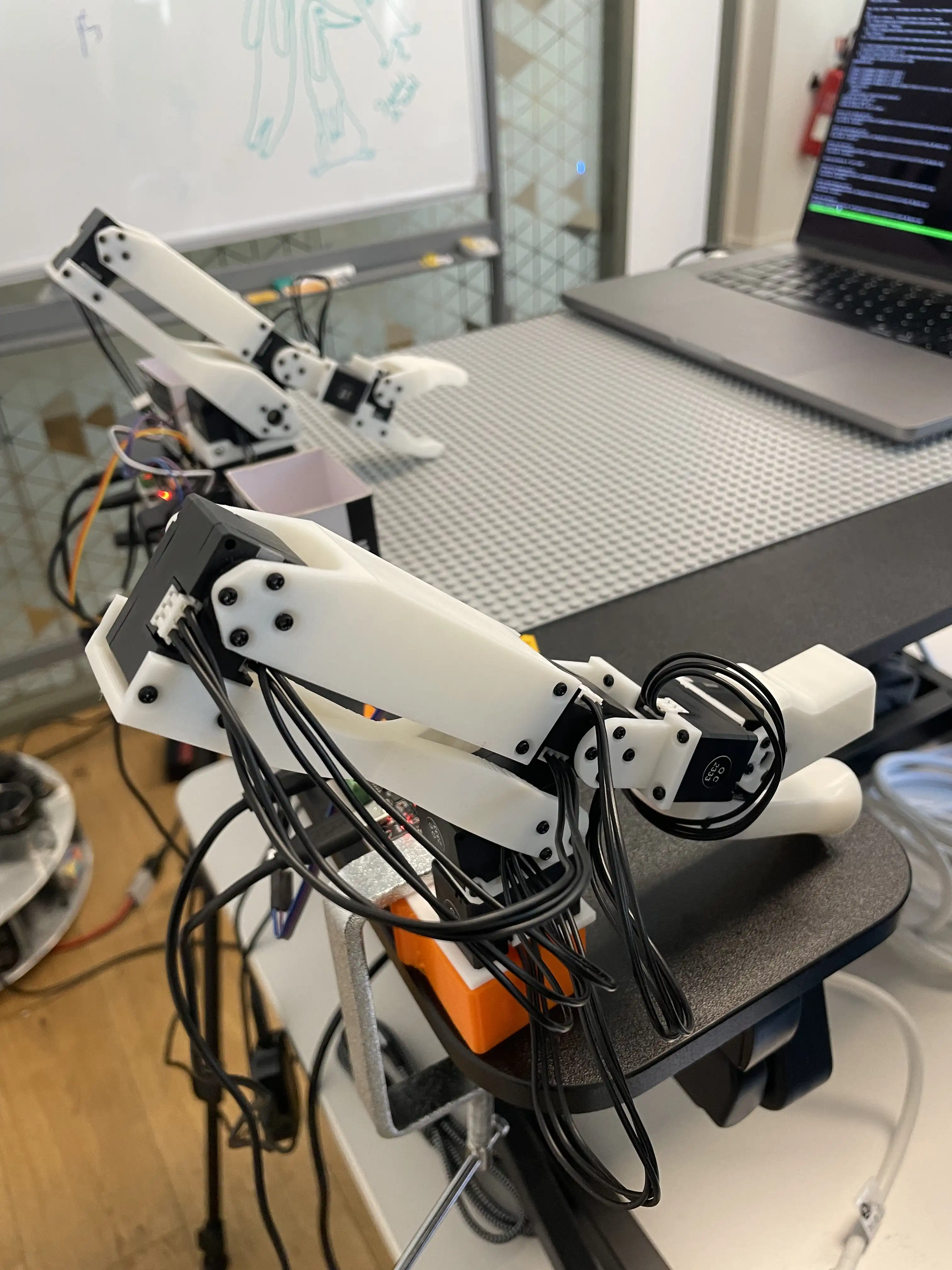
This tutorial is specifically made for the affordable [Koch v1.1](https://github.com/jess-moss/koch-v1-1) robot, but it contains additional information to be easily adapted to various types of robots like [Aloha bimanual robot](https://aloha-2.github.io) by changing some configurations. The Koch v1.1 consists of a leader arm and a follower arm, each with 6 motors. It can work with one or several cameras to record the scene, which serve as visual sensors for the robot.
During the data collection phase, you will control the follower arm by moving the leader arm. This process is known as "teleoperation." This technique is used to collect robot trajectories. Afterward, you'll train a neural network to imitate these trajectories and deploy the network to enable your robot to operate autonomously.
If you encounter any issues at any step of the tutorial, feel free to seek help on [Discord](https://discord.com/invite/s3KuuzsPFb) or don't hesitate to iterate with us on the tutorial by creating issues or pull requests. Thanks!
## 1. Order and Assemble your Koch v1.1
Follow the sourcing and assembling instructions provided on the [Koch v1.1 Github page](https://github.com/jess-moss/koch-v1-1). This will guide you through setting up both the follower and leader arms, as shown in the image below.
For a visual walkthrough of the assembly process, you can refer to [this video tutorial](https://youtu.be/8nQIg9BwwTk).
## 2. Configure motors, calibrate arms, teleoperate your Koch v1.1
First, install the additional dependencies required for robots built with dynamixel motors like Koch v1.1 by running one of the following commands (make sure gcc is installed).
Using `pip`:
```bash
pip install -e ".[dynamixel]"
```
Using `poetry`:
```bash
poetry sync --extras "dynamixel"
```
Using `uv`:
```bash
uv sync --extra "dynamixel"
```
/!\ For Linux only, ffmpeg and opencv requires conda install for now. Run this exact sequence of commands:
```bash
conda install -c conda-forge ffmpeg
pip uninstall opencv-python
conda install -c conda-forge "opencv>=4.10.0"
```
You are now ready to plug the 5V power supply to the motor bus of the leader arm (the smaller one) since all its motors only require 5V.
Then plug the 12V power supply to the motor bus of the follower arm. It has two motors that need 12V, and the rest will be powered with 5V through the voltage convertor.
Finally, connect both arms to your computer via USB. Note that the USB doesn't provide any power, and both arms need to be plugged in with their associated power supply to be detected by your computer.
Now you are ready to configure your motors for the first time, as detailed in the sections below. In the upcoming sections, you'll learn about our classes and functions by running some python code in an interactive session, or by copy-pasting it in a python file.
If you have already configured your motors the first time, you can streamline the process by directly running the teleoperate script (which is detailed further in the tutorial):
```bash
python lerobot/scripts/control_robot.py \
--robot.type=koch \
--control.type=teleoperate
```
It will automatically:
1. Identify any missing calibrations and initiate the calibration procedure.
2. Connect the robot and start teleoperation.
### a. Control your motors with DynamixelMotorsBus
You can use the [`DynamixelMotorsBus`](../lerobot/common/robot_devices/motors/dynamixel.py) to communicate with the motors connected as a chain to the corresponding USB bus. This class leverages the Python [Dynamixel SDK](https://emanual.robotis.com/docs/en/software/dynamixel/dynamixel_sdk/sample_code/python_read_write_protocol_2_0/#python-read-write-protocol-20) to facilitate reading from and writing to the motors.
**First Configuration of your motors**
You will need to unplug each motor in turn and run a command the identify the motor. The motor will save its own identification, so you only need to do this once. Start by unplugging all of the motors.
Do the Leader arm first, as all of its motors are of the same type. Plug in your first motor on your leader arm and run this script to set its ID to 1.
```bash
python lerobot/scripts/configure_motor.py \
--port /dev/tty.usbmodem58760432961 \
--brand dynamixel \
--model xl330-m288 \
--baudrate 1000000 \
--id 1
```
Then unplug your first motor and plug the second motor and set its ID to 2.
```bash
python lerobot/scripts/configure_motor.py \
--port /dev/tty.usbmodem58760432961 \
--brand dynamixel \
--model xl330-m288 \
--baudrate 1000000 \
--id 2
```
Redo the process for all your motors until ID 6.
The process for the follower arm is almost the same, but the follower arm has two types of motors. For the first two motors, make sure you set the model to `xl430-w250`. _Important: configuring follower motors requires plugging and unplugging power. Make sure you use the 5V power for the XL330s and the 12V power for the XL430s!_
After all of your motors are configured properly, you're ready to plug them all together in a daisy-chain as shown in the original video.
**Instantiate the DynamixelMotorsBus**
To begin, create two instances of the [`DynamixelMotorsBus`](../lerobot/common/robot_devices/motors/dynamixel.py), one for each arm, using their corresponding USB ports (e.g. `DynamixelMotorsBus(port="/dev/tty.usbmodem575E0031751"`).
To find the correct ports for each arm, run the utility script twice:
```bash
python lerobot/scripts/find_motors_bus_port.py
```
Example output when identifying the leader arm's port (e.g., `/dev/tty.usbmodem575E0031751` on Mac, or possibly `/dev/ttyACM0` on Linux):
```
Finding all available ports for the MotorBus.
['/dev/tty.usbmodem575E0032081', '/dev/tty.usbmodem575E0031751']
Remove the usb cable from your DynamixelMotorsBus and press Enter when done.
[...Disconnect leader arm and press Enter...]
The port of this DynamixelMotorsBus is /dev/tty.usbmodem575E0031751
Reconnect the usb cable.
```
Example output when identifying the follower arm's port (e.g., `/dev/tty.usbmodem575E0032081`, or possibly `/dev/ttyACM1` on Linux):
```
Finding all available ports for the MotorBus.
['/dev/tty.usbmodem575E0032081', '/dev/tty.usbmodem575E0031751']
Remove the usb cable from your DynamixelMotorsBus and press Enter when done.
[...Disconnect follower arm and press Enter...]
The port of this DynamixelMotorsBus is /dev/tty.usbmodem575E0032081
Reconnect the usb cable.
```
Troubleshooting: On Linux, you might need to give access to the USB ports by running this command with your ports:
```bash
sudo chmod 666 /dev/tty.usbmodem575E0032081
sudo chmod 666 /dev/tty.usbmodem575E0031751
```
*Listing and Configuring Motors*
Next, you'll need to list the motors for each arm, including their name, index, and model. Initially, each motor is assigned the factory default index `1`. Since each motor requires a unique index to function correctly when connected in a chain on a common bus, you'll need to assign different indices. It's recommended to use an ascending index order, starting from `1` (e.g., `1, 2, 3, 4, 5, 6`). These indices will be saved in the persistent memory of each motor during the first connection.
To assign indices to the motors, run this code in an interactive Python session. Replace the `port` values with the ones you identified earlier:
```python
from lerobot.common.robot_devices.motors.configs import DynamixelMotorsBusConfig
from lerobot.common.robot_devices.motors.dynamixel import DynamixelMotorsBus
leader_config = DynamixelMotorsBusConfig(
port="/dev/tty.usbmodem575E0031751",
motors={
# name: (index, model)
"shoulder_pan": (1, "xl330-m077"),
"shoulder_lift": (2, "xl330-m077"),
"elbow_flex": (3, "xl330-m077"),
"wrist_flex": (4, "xl330-m077"),
"wrist_roll": (5, "xl330-m077"),
"gripper": (6, "xl330-m077"),
},
)
follower_config = DynamixelMotorsBusConfig(
port="/dev/tty.usbmodem575E0032081",
motors={
# name: (index, model)
"shoulder_pan": (1, "xl430-w250"),
"shoulder_lift": (2, "xl430-w250"),
"elbow_flex": (3, "xl330-m288"),
"wrist_flex": (4, "xl330-m288"),
"wrist_roll": (5, "xl330-m288"),
"gripper": (6, "xl330-m288"),
},
)
leader_arm = DynamixelMotorsBus(leader_config)
follower_arm = DynamixelMotorsBus(follower_config)
```
IMPORTANTLY: Now that you have your ports, update [`KochRobotConfig`](../lerobot/common/robot_devices/robots/configs.py). You will find something like:
```python
@RobotConfig.register_subclass("koch")
@dataclass
class KochRobotConfig(ManipulatorRobotConfig):
calibration_dir: str = ".cache/calibration/koch"
# `max_relative_target` limits the magnitude of the relative positional target vector for safety purposes.
# Set this to a positive scalar to have the same value for all motors, or a list that is the same length as
# the number of motors in your follower arms.
max_relative_target: int | None = None
leader_arms: dict[str, MotorsBusConfig] = field(
default_factory=lambda: {
"main": DynamixelMotorsBusConfig(
port="/dev/tty.usbmodem585A0085511", <-- UPDATE HERE
motors={
# name: (index, model)
"shoulder_pan": [1, "xl330-m077"],
"shoulder_lift": [2, "xl330-m077"],
"elbow_flex": [3, "xl330-m077"],
"wrist_flex": [4, "xl330-m077"],
"wrist_roll": [5, "xl330-m077"],
"gripper": [6, "xl330-m077"],
},
),
}
)
follower_arms: dict[str, MotorsBusConfig] = field(
default_factory=lambda: {
"main": DynamixelMotorsBusConfig(
port="/dev/tty.usbmodem585A0076891", <-- UPDATE HERE
motors={
# name: (index, model)
"shoulder_pan": [1, "xl430-w250"],
"shoulder_lift": [2, "xl430-w250"],
"elbow_flex": [3, "xl330-m288"],
"wrist_flex": [4, "xl330-m288"],
"wrist_roll": [5, "xl330-m288"],
"gripper": [6, "xl330-m288"],
},
),
}
)
```
**Connect and Configure your Motors**
Before you can start using your motors, you'll need to configure them to ensure proper communication. When you first connect the motors, the [`DynamixelMotorsBus`](../lerobot/common/robot_devices/motors/dynamixel.py) automatically detects any mismatch between the current motor indices (factory set to `1`) and the specified indices (e.g., `1, 2, 3, 4, 5, 6`). This triggers a configuration procedure that requires you to unplug the power cord and motors, then reconnect each motor sequentially, starting from the one closest to the bus.
For a visual guide, refer to the [video tutorial of the configuration procedure](https://youtu.be/U78QQ9wCdpY).
To connect and configure the leader arm, run the following code in the same Python interactive session as earlier in the tutorial:
```python
leader_arm.connect()
```
When you connect the leader arm for the first time, you might see an output similar to this:
```
Read failed due to communication error on port /dev/tty.usbmodem575E0032081 for group_key ID_shoulder_pan_shoulder_lift_elbow_flex_wrist_flex_wrist_roll_gripper: [TxRxResult] There is no status packet!
/!\ A configuration issue has been detected with your motors:
If this is the first time you are using these motors, press enter to configure your motors... but before verify that all the cables are connected the proper way. If you find an issue, before making a modification, kill the python process, unplug the power cord to not damage the motors, rewire correctly, then plug the power again and relaunch the script.
Motor indices detected: {9600: [1]}
1. Unplug the power cord
2. Plug/unplug minimal number of cables to only have the first 1 motor(s) (['shoulder_pan']) connected.
3. Re-plug the power cord
Press Enter to continue...
*Follow the procedure*
Setting expected motor indices: [1, 2, 3, 4, 5, 6]
```
Once the leader arm is configured, repeat the process for the follower arm by running:
```python
follower_arm.connect()
```
Congratulations! Both arms are now properly configured and connected. You won't need to go through the configuration procedure again in the future.
**Troubleshooting**:
If the configuration process fails, you may need to do the configuration process via the Dynamixel Wizard.
Known failure modes:
- Calling `arm.connect()` raises `OSError: No motor found, but one new motor expected. Verify power cord is plugged in and retry` on Ubuntu 22.
Steps:
1. Visit https://emanual.robotis.com/docs/en/software/dynamixel/dynamixel_wizard2/#connect-dynamixel.
2. Follow the software installation instructions in section 3 of the web page.
3. Launch the software.
4. Configure the device scanning options in the menu under `Tools` > `Options` > `Scan`. Check only Protocol 2.0, select only the USB port identifier of interest, select all baudrates, set the ID range to `[0, 10]`. _While this step was not strictly necessary, it greatly speeds up scanning_.
5. For each motor in turn:
- Disconnect the power to the driver board.
- Connect **only** the motor of interest to the driver board, making sure to disconnect it from any other motors.
- Reconnect the power to the driver board.
- From the software menu select `Device` > `Scan` and let the scan run. A device should appear.
- If the device has an asterisk (*) near it, it means the firmware is indeed outdated. From the software menu, select `Tools` > `Firmware Update`. Follow the prompts.
- The main panel should have table with various parameters of the device (refer to the web page, section 5). Select the row with `ID`, and then set the desired ID on the bottom right panel by selecting and clicking `Save`.
- Just like you did with the ID, also set the `Baud Rate` to 1 Mbps.
6. Check everything has been done right:
- Rewire the arms in their final configuration and power both of them.
- Scan for devices. All 12 motors should appear.
- Select the motors one by one and move the arm. Check that the graphical indicator near the top right shows the movement.
** There is a common issue with the Dynamixel XL430-W250 motors where the motors become undiscoverable after upgrading their firmware from Mac and Windows Dynamixel Wizard2 applications. When this occurs, it is required to do a firmware recovery (Select `DYNAMIXEL Firmware Recovery` and follow the prompts). There are two known workarounds to conduct this firmware reset:
1) Install the Dynamixel Wizard on a linux machine and complete the firmware recovery
2) Use the Dynamixel U2D2 in order to perform the reset with Windows or Mac. This U2D2 can be purchased [here](https://www.robotis.us/u2d2/).
For either solution, open DYNAMIXEL Wizard 2.0 and select the appropriate port. You will likely be unable to see the motor in the GUI at this time. Select `Firmware Recovery`, carefully choose the correct model, and wait for the process to complete. Finally, re-scan to confirm the firmware recovery was successful.
**Read and Write with DynamixelMotorsBus**
To get familiar with how `DynamixelMotorsBus` communicates with the motors, you can start by reading data from them. Copy past this code in the same interactive python session:
```python
leader_pos = leader_arm.read("Present_Position")
follower_pos = follower_arm.read("Present_Position")
print(leader_pos)
print(follower_pos)
```
Expected output might look like:
```
array([2054, 523, 3071, 1831, 3049, 2441], dtype=int32)
array([2003, 1601, 56, 2152, 3101, 2283], dtype=int32)
```
Try moving the arms to various positions and observe how the values change.
Now let's try to enable torque in the follower arm by copy pasting this code:
```python
from lerobot.common.robot_devices.motors.dynamixel import TorqueMode
follower_arm.write("Torque_Enable", TorqueMode.ENABLED.value)
```
With torque enabled, the follower arm will be locked in its current position. Do not attempt to manually move the arm while torque is enabled, as this could damage the motors.
Now, to get more familiar with reading and writing, let's move the arm programmatically copy pasting the following example code:
```python
# Get the current position
position = follower_arm.read("Present_Position")
# Update first motor (shoulder_pan) position by +10 steps
position[0] += 10
follower_arm.write("Goal_Position", position)
# Update all motors position by -30 steps
position -= 30
follower_arm.write("Goal_Position", position)
# Update gripper by +30 steps
position[-1] += 30
follower_arm.write("Goal_Position", position[-1], "gripper")
```
When you're done playing, you can try to disable the torque, but make sure you hold your robot so that it doesn't fall:
```python
follower_arm.write("Torque_Enable", TorqueMode.DISABLED.value)
```
Finally, disconnect the arms:
```python
leader_arm.disconnect()
follower_arm.disconnect()
```
Alternatively, you can unplug the power cord, which will automatically disable torque and disconnect the motors.
*/!\ Warning*: These motors tend to overheat, especially under torque or if left plugged in for too long. Unplug after use.
### b. Teleoperate your Koch v1.1 with ManipulatorRobot
**Instantiate the ManipulatorRobot**
Before you can teleoperate your robot, you need to instantiate the [`ManipulatorRobot`](../lerobot/common/robot_devices/robots/manipulator.py) using the previously defined `leader_config` and `follower_config`.
For the Koch v1.1 robot, we only have one leader, so we refer to it as `"main"` and define it as `leader_arms={"main": leader_config}`. We do the same for the follower arm. For other robots (like the Aloha), which may have two pairs of leader and follower arms, you would define them like this: `leader_arms={"left": left_leader_config, "right": right_leader_config},`. Same thing for the follower arms.
Run the following code to instantiate your manipulator robot:
```python
from lerobot.common.robot_devices.robots.configs import KochRobotConfig
from lerobot.common.robot_devices.robots.manipulator import ManipulatorRobot
robot_config = KochRobotConfig(
leader_arms={"main": leader_config},
follower_arms={"main": follower_config},
cameras={}, # We don't use any camera for now
)
robot = ManipulatorRobot(robot_config)
```
The `KochRobotConfig` is used to set the associated settings and calibration process. For instance, we activate the torque of the gripper of the leader Koch v1.1 arm and position it at a 40 degree angle to use it as a trigger.
For the [Aloha bimanual robot](https://aloha-2.github.io), we would use `AlohaRobotConfig` to set different settings such as a secondary ID for shadow joints (shoulder, elbow). Specific to Aloha, LeRobot comes with default calibration files stored in in `.cache/calibration/aloha_default`. Assuming the motors have been properly assembled, no manual calibration step is expected for Aloha.
**Calibrate and Connect the ManipulatorRobot**
Next, you'll need to calibrate your Koch robot to ensure that the leader and follower arms have the same position values when they are in the same physical position. This calibration is essential because it allows a neural network trained on one Koch robot to work on another.
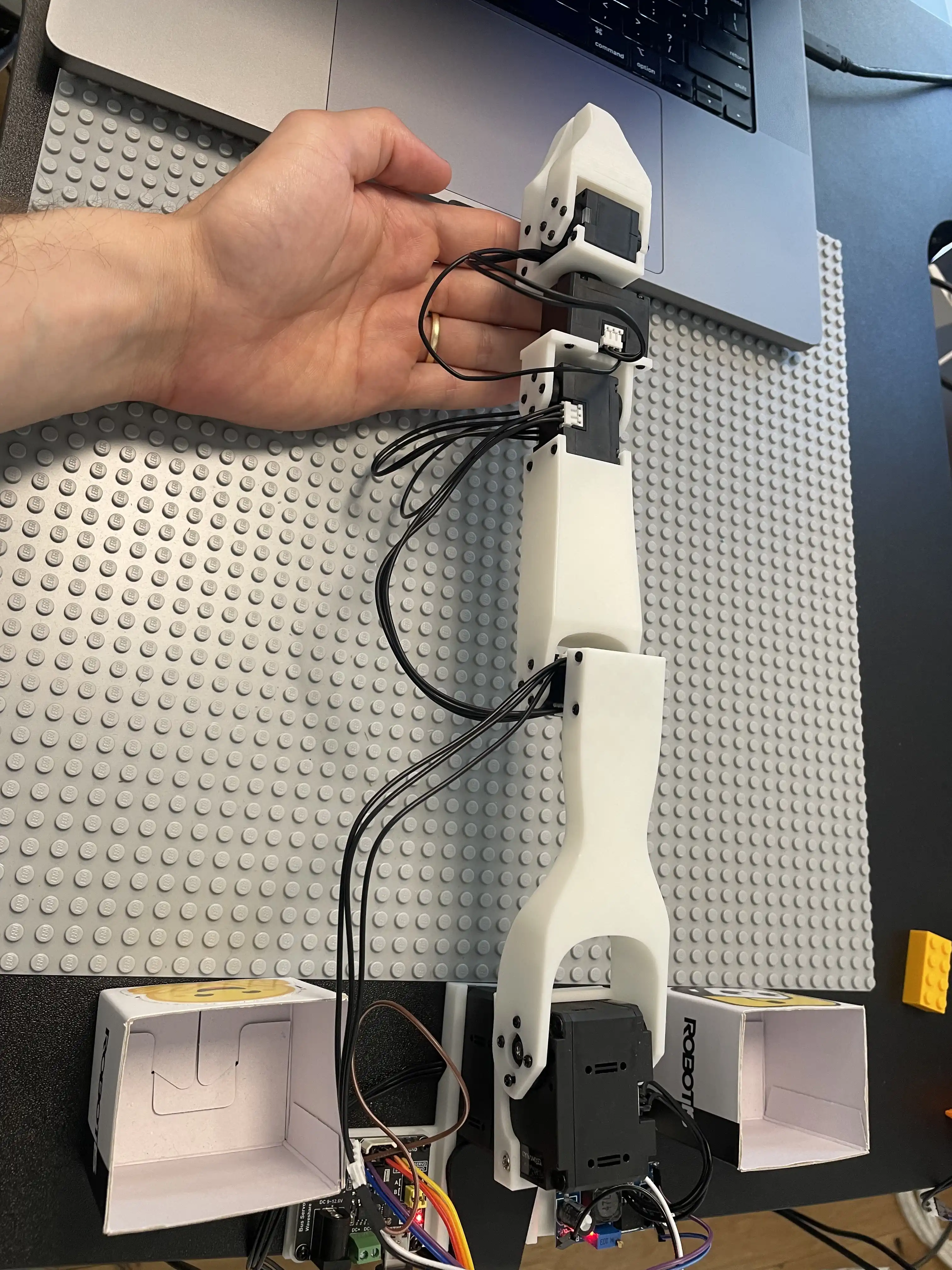
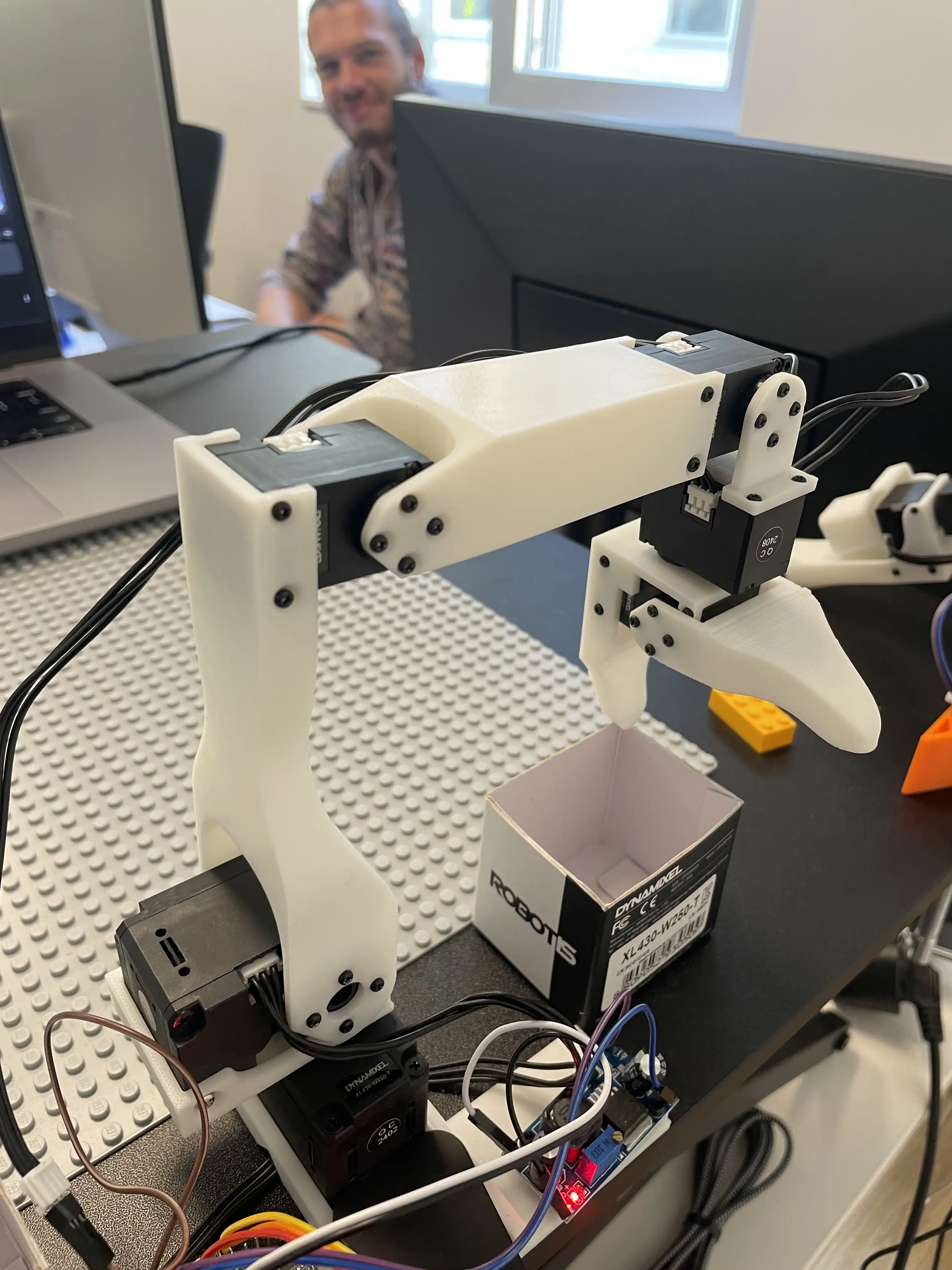
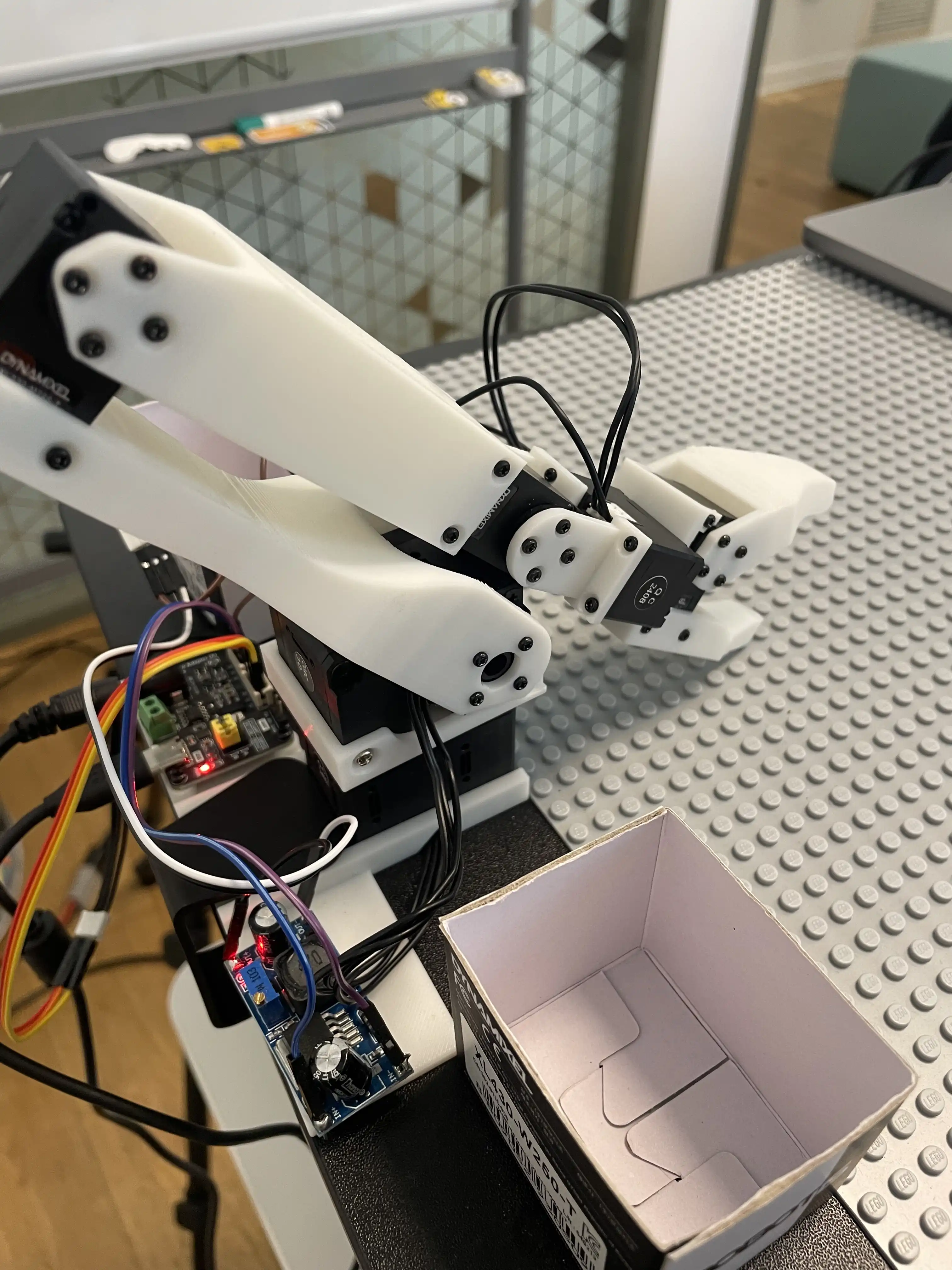
When you connect your robot for the first time, the [`ManipulatorRobot`](../lerobot/common/robot_devices/robots/manipulator.py) will detect if the calibration file is missing and trigger the calibration procedure. During this process, you will be guided to move each arm to three different positions.
Here are the positions you'll move the follower arm to:
| 1. Zero position | 2. Rotated position | 3. Rest position |
| ----------------------------------------------------------------------------------------------------------------------------------------------------------------- | -------------------------------------------------------------------------------------------------------------------------------------------------------------------------- | ----------------------------------------------------------------------------------------------------------------------------------------------------------------- |
|  |
|  |
|  |
And here are the corresponding positions for the leader arm:
| 1. Zero position | 2. Rotated position | 3. Rest position |
| ----------------------------------------------------------------------------------------------------------------------------------------------------------- | -------------------------------------------------------------------------------------------------------------------------------------------------------------------- | ----------------------------------------------------------------------------------------------------------------------------------------------------------- |
|
|
And here are the corresponding positions for the leader arm:
| 1. Zero position | 2. Rotated position | 3. Rest position |
| ----------------------------------------------------------------------------------------------------------------------------------------------------------- | -------------------------------------------------------------------------------------------------------------------------------------------------------------------- | ----------------------------------------------------------------------------------------------------------------------------------------------------------- |
| 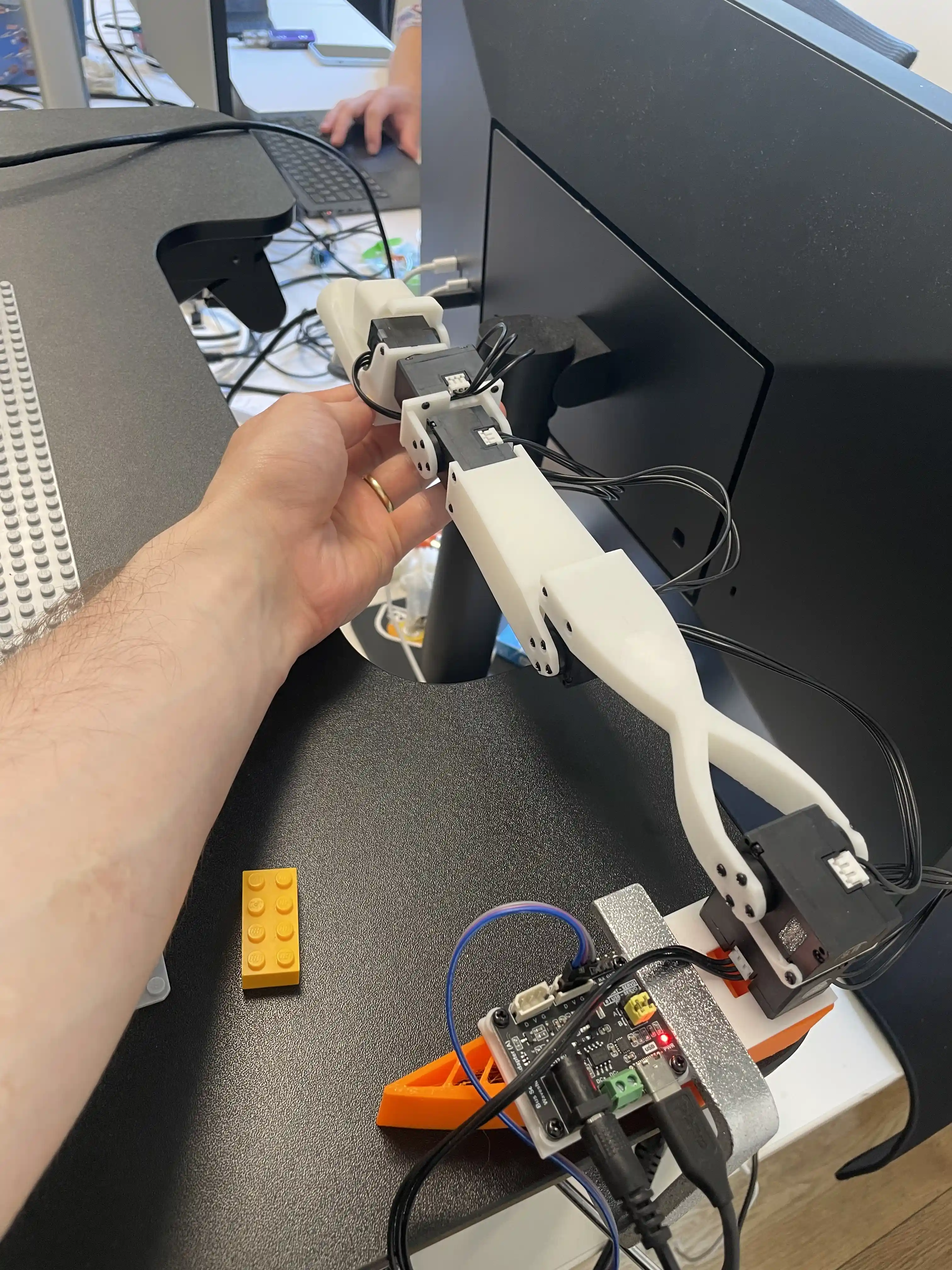 |
|  |
|  |
You can watch a [video tutorial of the calibration procedure](https://youtu.be/8drnU9uRY24) for more details.
During calibration, we count the number of full 360-degree rotations your motors have made since they were first used. That's why we ask yo to move to this arbitrary "zero" position. We don't actually "set" the zero position, so you don't need to be accurate. After calculating these "offsets" to shift the motor values around 0, we need to assess the rotation direction of each motor, which might differ. That's why we ask you to rotate all motors to roughly 90 degrees, to measure if the values changed negatively or positively.
Finally, the rest position ensures that the follower and leader arms are roughly aligned after calibration, preventing sudden movements that could damage the motors when starting teleoperation.
Importantly, once calibrated, all Koch robots will move to the same positions (e.g. zero and rotated position) when commanded.
Run the following code to calibrate and connect your robot:
```python
robot.connect()
```
The output will look like this:
```
Connecting main follower arm
Connecting main leader arm
Missing calibration file '.cache/calibration/koch/main_follower.json'
Running calibration of koch main follower...
Move arm to zero position
[...]
Move arm to rotated position
[...]
Move arm to rest position
[...]
Calibration is done! Saving calibration file '.cache/calibration/koch/main_follower.json'
Missing calibration file '.cache/calibration/koch/main_leader.json'
Running calibration of koch main leader...
Move arm to zero position
[...]
Move arm to rotated position
[...]
Move arm to rest position
[...]
Calibration is done! Saving calibration file '.cache/calibration/koch/main_leader.json'
```
*Verifying Calibration*
Once calibration is complete, you can check the positions of the leader and follower arms to ensure they match. If the calibration was successful, the positions should be very similar.
Run this code to get the positions in degrees:
```python
leader_pos = robot.leader_arms["main"].read("Present_Position")
follower_pos = robot.follower_arms["main"].read("Present_Position")
print(leader_pos)
print(follower_pos)
```
Example output:
```
array([-0.43945312, 133.94531, 179.82422, -18.984375, -1.9335938, 34.541016], dtype=float32)
array([-0.58723712, 131.72314, 174.98743, -16.872612, 0.786213, 35.271973], dtype=float32)
```
These values are in degrees, which makes them easier to interpret and debug. The zero position used during calibration should roughly correspond to 0 degrees for each motor, and the rotated position should roughly correspond to 90 degrees for each motor.
**Teleoperate your Koch v1.1**
You can easily teleoperate your robot by reading the positions from the leader arm and sending them as goal positions to the follower arm.
To teleoperate your robot for 30 seconds at a frequency of approximately 200Hz, run the following code:
```python
import tqdm
seconds = 30
frequency = 200
for _ in tqdm.tqdm(range(seconds*frequency)):
leader_pos = robot.leader_arms["main"].read("Present_Position")
robot.follower_arms["main"].write("Goal_Position", leader_pos)
```
*Using `teleop_step` for Teleoperation*
Alternatively, you can teleoperate the robot using the `teleop_step` method from [`ManipulatorRobot`](../lerobot/common/robot_devices/robots/manipulator.py).
Run this code to teleoperate:
```python
for _ in tqdm.tqdm(range(seconds*frequency)):
robot.teleop_step()
```
*Recording data during Teleoperation*
Teleoperation is particularly useful for recording data. You can use the `teleop_step(record_data=True)` to returns both the follower arm's position as `"observation.state"` and the leader arm's position as `"action"`. This function also converts the numpy arrays into PyTorch tensors. If you're working with a robot that has two leader and two follower arms (like the Aloha), the positions are concatenated.
Run the following code to see how slowly moving the leader arm affects the observation and action:
```python
leader_pos = robot.leader_arms["main"].read("Present_Position")
follower_pos = robot.follower_arms["main"].read("Present_Position")
observation, action = robot.teleop_step(record_data=True)
print(follower_pos)
print(observation)
print(leader_pos)
print(action)
```
Expected output:
```
array([7.8223, 131.1328, 165.5859, -23.4668, -0.9668, 32.4316], dtype=float32)
{'observation.state': tensor([7.8223, 131.1328, 165.5859, -23.4668, -0.9668, 32.4316])}
array([3.4277, 134.1211, 179.8242, -18.5449, -1.5820, 34.7168], dtype=float32)
{'action': tensor([3.4277, 134.1211, 179.8242, -18.5449, -1.5820, 34.7168])}
```
*Asynchronous Frame Recording*
Additionally, `teleop_step` can asynchronously record frames from multiple cameras and include them in the observation dictionary as `"observation.images.CAMERA_NAME"`. This feature will be covered in more detail in the next section.
*Disconnecting the Robot*
When you're finished, make sure to disconnect your robot by running:
```python
robot.disconnect()
```
Alternatively, you can unplug the power cord, which will also disable torque.
*/!\ Warning*: These motors tend to overheat, especially under torque or if left plugged in for too long. Unplug after use.
### c. Add your cameras with OpenCVCamera
**(Optional) Use your phone as camera on Linux**
If you want to use your phone as a camera on Linux, follow these steps to set up a virtual camera
1. *Install `v4l2loopback-dkms` and `v4l-utils`*. Those packages are required to create virtual camera devices (`v4l2loopback`) and verify their settings with the `v4l2-ctl` utility from `v4l-utils`. Install them using:
```python
sudo apt install v4l2loopback-dkms v4l-utils
```
2. *Install [DroidCam](https://droidcam.app) on your phone*. This app is available for both iOS and Android.
3. *Install [OBS Studio](https://obsproject.com)*. This software will help you manage the camera feed. Install it using [Flatpak](https://flatpak.org):
```python
flatpak install flathub com.obsproject.Studio
```
4. *Install the DroidCam OBS plugin*. This plugin integrates DroidCam with OBS Studio. Install it with:
```python
flatpak install flathub com.obsproject.Studio.Plugin.DroidCam
```
5. *Start OBS Studio*. Launch with:
```python
flatpak run com.obsproject.Studio
```
6. *Add your phone as a source*. Follow the instructions [here](https://droidcam.app/obs/usage). Be sure to set the resolution to `640x480`.
7. *Adjust resolution settings*. In OBS Studio, go to `File > Settings > Video`. Change the `Base(Canvas) Resolution` and the `Output(Scaled) Resolution` to `640x480` by manually typing it in.
8. *Start virtual camera*. In OBS Studio, follow the instructions [here](https://obsproject.com/kb/virtual-camera-guide).
9. *Verify the virtual camera setup*. Use `v4l2-ctl` to list the devices:
```python
v4l2-ctl --list-devices
```
You should see an entry like:
```
VirtualCam (platform:v4l2loopback-000):
/dev/video1
```
10. *Check the camera resolution*. Use `v4l2-ctl` to ensure that the virtual camera output resolution is `640x480`. Change `/dev/video1` to the port of your virtual camera from the output of `v4l2-ctl --list-devices`.
```python
v4l2-ctl -d /dev/video1 --get-fmt-video
```
You should see an entry like:
```
>>> Format Video Capture:
>>> Width/Height : 640/480
>>> Pixel Format : 'YUYV' (YUYV 4:2:2)
```
Troubleshooting: If the resolution is not correct you will have to delete the Virtual Camera port and try again as it cannot be changed.
If everything is set up correctly, you can proceed with the rest of the tutorial.
**(Optional) Use your iPhone as a camera on MacOS**
To use your iPhone as a camera on macOS, enable the Continuity Camera feature:
- Ensure your Mac is running macOS 13 or later, and your iPhone is on iOS 16 or later.
- Sign in both devices with the same Apple ID.
- Connect your devices with a USB cable or turn on Wi-Fi and Bluetooth for a wireless connection.
For more details, visit [Apple support](https://support.apple.com/en-gb/guide/mac-help/mchl77879b8a/mac).
Your iPhone should be detected automatically when running the camera setup script in the next section.
**Instantiate an OpenCVCamera**
The [`OpenCVCamera`](../lerobot/common/robot_devices/cameras/opencv.py) class allows you to efficiently record frames from most cameras using the [`opencv2`](https://docs.opencv.org) library. For more details on compatibility, see [Video I/O with OpenCV Overview](https://docs.opencv.org/4.x/d0/da7/videoio_overview.html).
To instantiate an [`OpenCVCamera`](../lerobot/common/robot_devices/cameras/opencv.py), you need a camera index (e.g. `OpenCVCamera(camera_index=0)`). When you only have one camera like a webcam of a laptop, the camera index is usually `0` but it might differ, and the camera index might change if you reboot your computer or re-plug your camera. This behavior depends on your operating system.
To find the camera indices, run the following utility script, which will save a few frames from each detected camera:
```bash
python lerobot/common/robot_devices/cameras/opencv.py \
--images-dir outputs/images_from_opencv_cameras
```
The output will look something like this if you have two cameras connected:
```
Mac or Windows detected. Finding available camera indices through scanning all indices from 0 to 60
[...]
Camera found at index 0
Camera found at index 1
[...]
Connecting cameras
OpenCVCamera(0, fps=30.0, width=1920.0, height=1080.0, color_mode=rgb)
OpenCVCamera(1, fps=24.0, width=1920.0, height=1080.0, color_mode=rgb)
Saving images to outputs/images_from_opencv_cameras
Frame: 0000 Latency (ms): 39.52
[...]
Frame: 0046 Latency (ms): 40.07
Images have been saved to outputs/images_from_opencv_cameras
```
Check the saved images in `outputs/images_from_opencv_cameras` to identify which camera index corresponds to which physical camera (e.g. `0` for `camera_00` or `1` for `camera_01`):
```
camera_00_frame_000000.png
[...]
camera_00_frame_000047.png
camera_01_frame_000000.png
[...]
camera_01_frame_000047.png
```
Note: Some cameras may take a few seconds to warm up, and the first frame might be black or green.
Finally, run this code to instantiate and connectyour camera:
```python
from lerobot.common.robot_devices.cameras.configs import OpenCVCameraConfig
from lerobot.common.robot_devices.cameras.opencv import OpenCVCamera
config = OpenCVCameraConfig(camera_index=0)
camera = OpenCVCamera(config)
camera.connect()
color_image = camera.read()
print(color_image.shape)
print(color_image.dtype)
```
Expected output for a laptop camera on MacBookPro:
```
(1080, 1920, 3)
uint8
```
Or like this if you followed our tutorial to set a virtual camera:
```
(480, 640, 3)
uint8
```
With certain camera, you can also specify additional parameters like frame rate, resolution, and color mode during instantiation. For instance:
```python
config = OpenCVCameraConfig(camera_index=0, fps=30, width=640, height=480)
```
If the provided arguments are not compatible with the camera, an exception will be raised.
*Disconnecting the camera*
When you're done using the camera, disconnect it by running:
```python
camera.disconnect()
```
**Instantiate your robot with cameras**
Additionally, you can set up your robot to work with your cameras.
Modify the following Python code with the appropriate camera names and configurations:
```python
robot = ManipulatorRobot(
KochRobotConfig(
leader_arms={"main": leader_arm},
follower_arms={"main": follower_arm},
calibration_dir=".cache/calibration/koch",
cameras={
"laptop": OpenCVCameraConfig(0, fps=30, width=640, height=480),
"phone": OpenCVCameraConfig(1, fps=30, width=640, height=480),
},
)
)
robot.connect()
```
As a result, `teleop_step(record_data=True` will return a frame for each camera following the pytorch "channel first" convention but we keep images in `uint8` with pixels in range [0,255] to easily save them.
Modify this code with the names of your cameras and run it:
```python
observation, action = robot.teleop_step(record_data=True)
print(observation["observation.images.laptop"].shape)
print(observation["observation.images.phone"].shape)
print(observation["observation.images.laptop"].min().item())
print(observation["observation.images.laptop"].max().item())
```
The output should look like this:
```
torch.Size([3, 480, 640])
torch.Size([3, 480, 640])
0
255
```
### d. Use `control_robot.py` and our `teleoperate` function
Instead of manually running the python code in a terminal window, you can use [`lerobot/scripts/control_robot.py`](../lerobot/scripts/control_robot.py) to instantiate your robot by providing the robot configurations via command line and control your robot with various modes as explained next.
Try running this code to teleoperate your robot (if you dont have a camera, keep reading):
```bash
python lerobot/scripts/control_robot.py \
--robot.type=koch \
--control.type=teleoperate
```
You will see a lot of lines appearing like this one:
```
INFO 2024-08-10 11:15:03 ol_robot.py:209 dt: 5.12 (195.1hz) dtRlead: 4.93 (203.0hz) dtWfoll: 0.19 (5239.0hz)
```
It contains
- `2024-08-10 11:15:03` which is the date and time of the call to the print function.
- `ol_robot.py:209` which is the end of the file name and the line number where the print function is called (`lerobot/scripts/control_robot.py` line `209`).
- `dt: 5.12 (195.1hz)` which is the "delta time" or the number of milliseconds spent between the previous call to `robot.teleop_step()` and the current one, associated with the frequency (5.12 ms equals 195.1 Hz) ; note that you can control the maximum frequency by adding fps as argument such as `--fps 30`.
- `dtRlead: 4.93 (203.0hz)` which is the number of milliseconds it took to read the position of the leader arm using `leader_arm.read("Present_Position")`.
- `dtWfoll: 0.22 (4446.9hz)` which is the number of milliseconds it took to set a new goal position for the follower arm using `follower_arm.write("Goal_position", leader_pos)` ; note that writing is done asynchronously so it takes less time than reading.
Importantly: If you don't have any camera, you can remove them dynamically with this [draccus](https://github.com/dlwh/draccus) syntax `--robot.cameras='{}'`:
```bash
python lerobot/scripts/control_robot.py \
--robot.type=koch \
--robot.cameras='{}' \
--control.type=teleoperate
```
We advise to create a new yaml file when the command becomes too long.
## 3. Record your Dataset and Visualize it
Using what you've learned previously, you can now easily record a dataset of states and actions for one episode. You can use `busy_wait` to control the speed of teleoperation and record at a fixed `fps` (frame per seconds).
Try this code to record 30 seconds at 60 fps:
```python
import time
from lerobot.scripts.control_robot import busy_wait
record_time_s = 30
fps = 60
states = []
actions = []
for _ in range(record_time_s * fps):
start_time = time.perf_counter()
observation, action = robot.teleop_step(record_data=True)
states.append(observation["observation.state"])
actions.append(action["action"])
dt_s = time.perf_counter() - start_time
busy_wait(1 / fps - dt_s)
# Note that observation and action are available in RAM, but
# you could potentially store them on disk with pickle/hdf5 or
# our optimized format `LeRobotDataset`. More on this next.
```
Importantly, many utilities are still missing. For instance, if you have cameras, you will need to save the images on disk to not go out of RAM, and to do so in threads to not slow down communication with your robot. Also, you will need to store your data in a format optimized for training and web sharing like [`LeRobotDataset`](../lerobot/common/datasets/lerobot_dataset.py). More on this in the next section.
### a. Use the `record` function
You can use the `record` function from [`lerobot/scripts/control_robot.py`](../lerobot/scripts/control_robot.py) to achieve efficient data recording. It encompasses many recording utilities:
1. Frames from cameras are saved on disk in threads, and encoded into videos at the end of each episode recording.
2. Video streams from cameras are displayed in window so that you can verify them.
3. Data is stored with [`LeRobotDataset`](../lerobot/common/datasets/lerobot_dataset.py) format which is pushed to your Hugging Face page (unless `--control.push_to_hub=false` is provided).
4. Checkpoints are done during recording, so if any issue occurs, you can resume recording by re-running the same command again with `--control.resume=true`. You will need to manually delete the dataset directory if you want to start recording from scratch.
5. Set the flow of data recording using command line arguments:
- `--control.warmup_time_s=10` defines the number of seconds before starting data collection. It allows the robot devices to warmup and synchronize (10 seconds by default).
- `--control.episode_time_s=60` defines the number of seconds for data recording for each episode (60 seconds by default).
- `--control.reset_time_s=60` defines the number of seconds for resetting the environment after each episode (60 seconds by default).
- `--control.num_episodes=50` defines the number of episodes to record (50 by default).
6. Control the flow during data recording using keyboard keys:
- Press right arrow `->` at any time during episode recording to early stop and go to resetting. Same during resetting, to early stop and to go to the next episode recording.
- Press left arrow `<-` at any time during episode recording or resetting to early stop, cancel the current episode, and re-record it.
- Press escape `ESC` at any time during episode recording to end the session early and go straight to video encoding and dataset uploading.
7. Similarly to `teleoperate`, you can also use the command line to override anything.
Before trying `record`, if you want to push your dataset to the hub, make sure you've logged in using a write-access token, which can be generated from the [Hugging Face settings](https://huggingface.co/settings/tokens):
```bash
huggingface-cli login --token ${HUGGINGFACE_TOKEN} --add-to-git-credential
```
Also, store your Hugging Face repository name in a variable (e.g. `cadene` or `lerobot`). For instance, run this to use your Hugging Face user name as repository:
```bash
HF_USER=$(huggingface-cli whoami | head -n 1)
echo $HF_USER
```
If you don't want to push to hub, use `--control.push_to_hub=false`.
Now run this to record 2 episodes:
```bash
python lerobot/scripts/control_robot.py \
--robot.type=koch \
--control.type=record \
--control.single_task="Grasp a lego block and put it in the bin." \
--control.fps=30 \
--control.repo_id=${HF_USER}/koch_test \
--control.tags='["tutorial"]' \
--control.warmup_time_s=5 \
--control.episode_time_s=30 \
--control.reset_time_s=30 \
--control.num_episodes=2 \
--control.push_to_hub=true
```
This will write your dataset locally to `~/.cache/huggingface/lerobot/{repo-id}` (e.g. `data/cadene/koch_test`) and push it on the hub at `https://huggingface.co/datasets/{HF_USER}/{repo-id}`. Your dataset will be automatically tagged with `LeRobot` for the community to find it easily, and you can also add custom tags (in this case `tutorial` for example).
You can look for other LeRobot datasets on the hub by searching for `LeRobot` tags: https://huggingface.co/datasets?other=LeRobot
You will see a lot of lines appearing like this one:
```
INFO 2024-08-10 15:02:58 ol_robot.py:219 dt:33.34 (30.0hz) dtRlead: 5.06 (197.5hz) dtWfoll: 0.25 (3963.7hz) dtRfoll: 6.22 (160.7hz) dtRlaptop: 32.57 (30.7hz) dtRphone: 33.84 (29.5hz)
```
It contains:
- `2024-08-10 15:02:58` which is the date and time of the call to the print function,
- `ol_robot.py:219` which is the end of the file name and the line number where the print function is called (`lerobot/scripts/control_robot.py` line `219`).
- `dt:33.34 (30.0hz)` which is the "delta time" or the number of milliseconds spent between the previous call to `robot.teleop_step(record_data=True)` and the current one, associated with the frequency (33.34 ms equals 30.0 Hz) ; note that we use `--fps 30` so we expect 30.0 Hz ; when a step takes more time, the line appears in yellow.
- `dtRlead: 5.06 (197.5hz)` which is the delta time of reading the present position of the leader arm.
- `dtWfoll: 0.25 (3963.7hz)` which is the delta time of writing the goal position on the follower arm ; writing is asynchronous so it takes less time than reading.
- `dtRfoll: 6.22 (160.7hz)` which is the delta time of reading the present position on the follower arm.
- `dtRlaptop:32.57 (30.7hz) ` which is the delta time of capturing an image from the laptop camera in the thread running asynchronously.
- `dtRphone:33.84 (29.5hz)` which is the delta time of capturing an image from the phone camera in the thread running asynchronously.
Troubleshooting:
- On Linux, if you encounter a hanging issue when using cameras, uninstall opencv and re-install it with conda:
```bash
pip uninstall opencv-python
conda install -c conda-forge opencv=4.10.0
```
- On Linux, if you encounter any issue during video encoding with `ffmpeg: unknown encoder libsvtav1`, you can:
- install with conda-forge by running `conda install -c conda-forge ffmpeg` (it should be compiled with `libsvtav1`),
- or, install [Homebrew](https://brew.sh) and run `brew install ffmpeg` (it should be compiled with `libsvtav1`),
- or, install [ffmpeg build dependencies](https://trac.ffmpeg.org/wiki/CompilationGuide/Ubuntu#GettheDependencies) and [compile ffmpeg from source with libsvtav1](https://trac.ffmpeg.org/wiki/CompilationGuide/Ubuntu#libsvtav1),
- and, make sure you use the corresponding ffmpeg binary to your install with `which ffmpeg`.
- On Linux, if the left and right arrow keys and escape key don't have any effect during data recording, make sure you've set the `$DISPLAY` environment variable. See [pynput limitations](https://pynput.readthedocs.io/en/latest/limitations.html#linux).
At the end of data recording, your dataset will be uploaded on your Hugging Face page (e.g. https://huggingface.co/datasets/cadene/koch_test) that you can obtain by running:
```bash
echo https://huggingface.co/datasets/${HF_USER}/koch_test
```
### b. Advice for recording dataset
Once you're comfortable with data recording, it's time to create a larger dataset for training. A good starting task is grasping an object at different locations and placing it in a bin. We suggest recording at least 50 episodes, with 10 episodes per location. Keep the cameras fixed and maintain consistent grasping behavior throughout the recordings.
In the following sections, you’ll train your neural network. After achieving reliable grasping performance, you can start introducing more variations during data collection, such as additional grasp locations, different grasping techniques, and altering camera positions.
Avoid adding too much variation too quickly, as it may hinder your results.
In the coming months, we plan to release a foundational model for robotics. We anticipate that fine-tuning this model will enhance generalization, reducing the need for strict consistency during data collection.
### c. Visualize all episodes
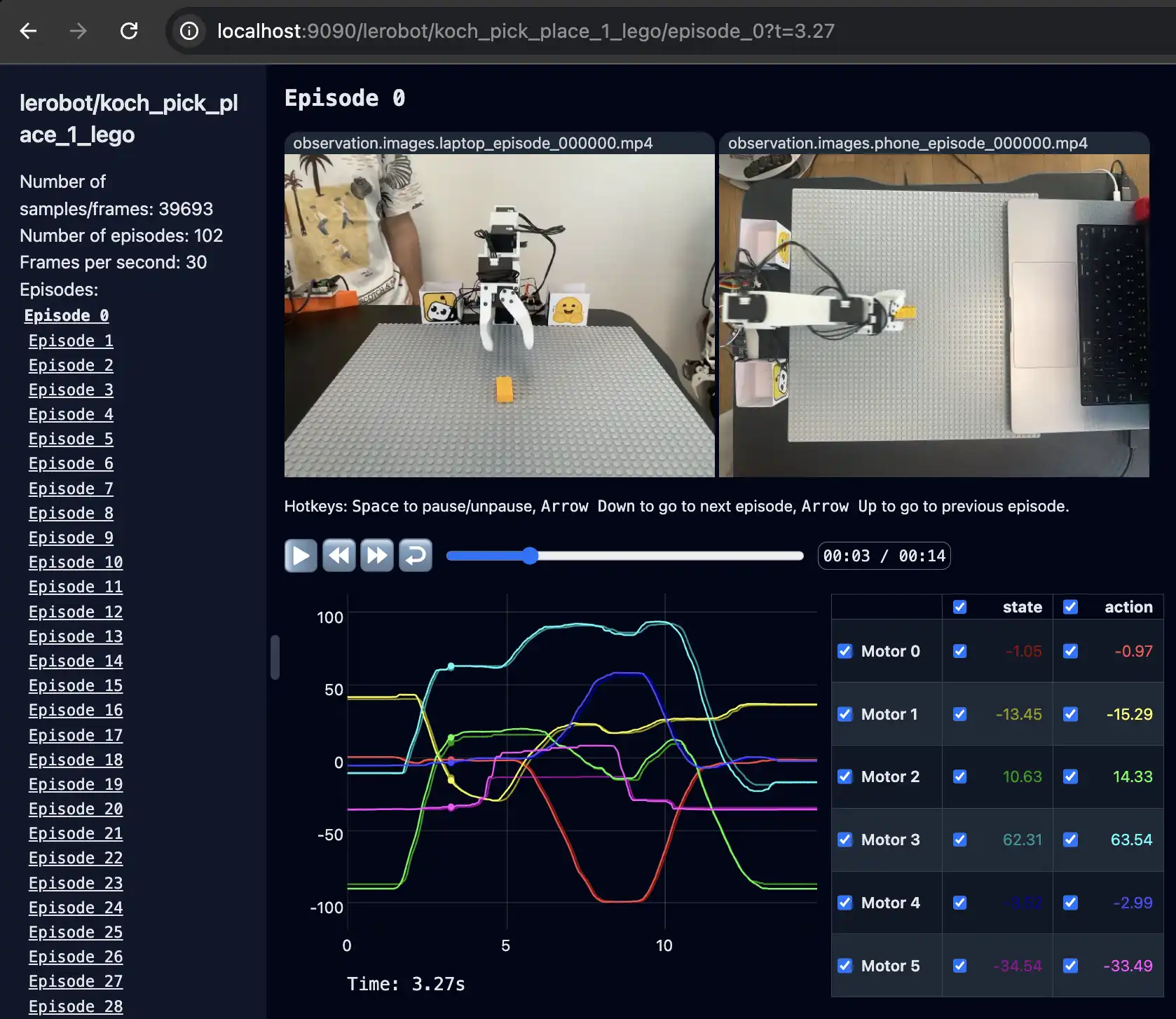
You can visualize your dataset by running:
```bash
python lerobot/scripts/visualize_dataset_html.py \
--repo-id ${HF_USER}/koch_test
```
Note: You might need to add `--local-files-only 1` if your dataset was not uploaded to hugging face hub.
This will launch a local web server that looks like this:
### d. Replay episode on your robot with the `replay` function
A useful feature of [`lerobot/scripts/control_robot.py`](../lerobot/scripts/control_robot.py) is the `replay` function, which allows to replay on your robot any episode that you've recorded or episodes from any dataset out there. This function helps you test the repeatability of your robot's actions and assess transferability across robots of the same model.
To replay the first episode of the dataset you just recorded, run the following command:
```bash
python lerobot/scripts/control_robot.py \
--robot.type=koch \
--control.type=replay \
--control.fps=30 \
--control.repo_id=${HF_USER}/koch_test \
--control.episode=0
```
Your robot should replicate movements similar to those you recorded. For example, check out [this video](https://x.com/RemiCadene/status/1793654950905680090) where we use `replay` on a Aloha robot from [Trossen Robotics](https://www.trossenrobotics.com).
## 4. Train a policy on your data
### a. Use the `train` script
To train a policy to control your robot, use the [`python lerobot/scripts/train.py`](../lerobot/scripts/train.py) script. A few arguments are required. Here is an example command:
```bash
python lerobot/scripts/train.py \
--dataset.repo_id=${HF_USER}/koch_test \
--policy.type=act \
--output_dir=outputs/train/act_koch_test \
--job_name=act_koch_test \
--policy.device=cuda \
--wandb.enable=true
```
Let's explain it:
1. We provided the dataset as argument with `--dataset.repo_id=${HF_USER}/koch_test`.
2. We provided the policy with `policy.type=act`. This loads configurations from [`configuration_act.py`](../lerobot/common/policies/act/configuration_act.py). Importantly, this policy will automatically adapt to the number of motor sates, motor actions and cameras of your robot (e.g. `laptop` and `phone`) which have been saved in your dataset.
4. We provided `policy.device=cuda` since we are training on a Nvidia GPU, but you could use `policy.device=mps` to train on Apple silicon.
5. We provided `wandb.enable=true` to use [Weights and Biases](https://docs.wandb.ai/quickstart) for visualizing training plots. This is optional but if you use it, make sure you are logged in by running `wandb login`.
For more information on the `train` script see the previous tutorial: [`examples/4_train_policy_with_script.md`](../examples/4_train_policy_with_script.md)
### b. (Optional) Upload policy checkpoints to the hub
Once training is done, upload the latest checkpoint with:
```bash
huggingface-cli upload ${HF_USER}/act_koch_test \
outputs/train/act_koch_test/checkpoints/last/pretrained_model
```
You can also upload intermediate checkpoints with:
```bash
CKPT=010000
huggingface-cli upload ${HF_USER}/act_koch_test_${CKPT} \
outputs/train/act_koch_test/checkpoints/${CKPT}/pretrained_model
```
## 5. Evaluate your policy
Now that you have a policy checkpoint, you can easily control your robot with it using methods from [`ManipulatorRobot`](../lerobot/common/robot_devices/robots/manipulator.py) and the policy.
Try this code for running inference for 60 seconds at 30 fps:
```python
from lerobot.common.policies.act.modeling_act import ACTPolicy
inference_time_s = 60
fps = 30
device = "cuda" # TODO: On Mac, use "mps" or "cpu"
ckpt_path = "outputs/train/act_koch_test/checkpoints/last/pretrained_model"
policy = ACTPolicy.from_pretrained(ckpt_path)
policy.to(device)
for _ in range(inference_time_s * fps):
start_time = time.perf_counter()
# Read the follower state and access the frames from the cameras
observation = robot.capture_observation()
# Convert to pytorch format: channel first and float32 in [0,1]
# with batch dimension
for name in observation:
if "image" in name:
observation[name] = observation[name].type(torch.float32) / 255
observation[name] = observation[name].permute(2, 0, 1).contiguous()
observation[name] = observation[name].unsqueeze(0)
observation[name] = observation[name].to(device)
# Compute the next action with the policy
# based on the current observation
action = policy.select_action(observation)
# Remove batch dimension
action = action.squeeze(0)
# Move to cpu, if not already the case
action = action.to("cpu")
# Order the robot to move
robot.send_action(action)
dt_s = time.perf_counter() - start_time
busy_wait(1 / fps - dt_s)
```
### a. Use our `record` function
Ideally, when controlling your robot with your neural network, you would want to record evaluation episodes and to be able to visualize them later on, or even train on them like in Reinforcement Learning. This pretty much corresponds to recording a new dataset but with a neural network providing the actions instead of teleoperation.
To this end, you can use the `record` function from [`lerobot/scripts/control_robot.py`](../lerobot/scripts/control_robot.py) but with a policy checkpoint as input. For instance, run this command to record 10 evaluation episodes:
```bash
python lerobot/scripts/control_robot.py \
--robot.type=koch \
--control.type=record \
--control.fps=30 \
--control.repo_id=${HF_USER}/eval_act_koch_test \
--control.tags='["tutorial"]' \
--control.warmup_time_s=5 \
--control.episode_time_s=30 \
--control.reset_time_s=30 \
--control.num_episodes=10 \
--control.push_to_hub=true \
--control.policy.path=outputs/train/act_koch_test/checkpoints/last/pretrained_model
```
As you can see, it's almost the same command as previously used to record your training dataset. Two things changed:
1. There is an additional `--control.policy.path` argument which indicates the path to your policy checkpoint with (e.g. `outputs/train/eval_koch_test/checkpoints/last/pretrained_model`). You can also use the model repository if you uploaded a model checkpoint to the hub (e.g. `${HF_USER}/act_koch_test`).
2. The name of dataset begins by `eval` to reflect that you are running inference (e.g. `${HF_USER}/eval_act_koch_test`).
### b. Visualize evaluation afterwards
You can then visualize your evaluation dataset by running the same command as before but with the new inference dataset as argument:
```bash
python lerobot/scripts/visualize_dataset.py \
--repo-id ${HF_USER}/eval_act_koch_test
```
## 6. Next step
Join our [Discord](https://discord.com/invite/s3KuuzsPFb) to collaborate on data collection and help us train a fully open-source foundational models for robotics!
|
You can watch a [video tutorial of the calibration procedure](https://youtu.be/8drnU9uRY24) for more details.
During calibration, we count the number of full 360-degree rotations your motors have made since they were first used. That's why we ask yo to move to this arbitrary "zero" position. We don't actually "set" the zero position, so you don't need to be accurate. After calculating these "offsets" to shift the motor values around 0, we need to assess the rotation direction of each motor, which might differ. That's why we ask you to rotate all motors to roughly 90 degrees, to measure if the values changed negatively or positively.
Finally, the rest position ensures that the follower and leader arms are roughly aligned after calibration, preventing sudden movements that could damage the motors when starting teleoperation.
Importantly, once calibrated, all Koch robots will move to the same positions (e.g. zero and rotated position) when commanded.
Run the following code to calibrate and connect your robot:
```python
robot.connect()
```
The output will look like this:
```
Connecting main follower arm
Connecting main leader arm
Missing calibration file '.cache/calibration/koch/main_follower.json'
Running calibration of koch main follower...
Move arm to zero position
[...]
Move arm to rotated position
[...]
Move arm to rest position
[...]
Calibration is done! Saving calibration file '.cache/calibration/koch/main_follower.json'
Missing calibration file '.cache/calibration/koch/main_leader.json'
Running calibration of koch main leader...
Move arm to zero position
[...]
Move arm to rotated position
[...]
Move arm to rest position
[...]
Calibration is done! Saving calibration file '.cache/calibration/koch/main_leader.json'
```
*Verifying Calibration*
Once calibration is complete, you can check the positions of the leader and follower arms to ensure they match. If the calibration was successful, the positions should be very similar.
Run this code to get the positions in degrees:
```python
leader_pos = robot.leader_arms["main"].read("Present_Position")
follower_pos = robot.follower_arms["main"].read("Present_Position")
print(leader_pos)
print(follower_pos)
```
Example output:
```
array([-0.43945312, 133.94531, 179.82422, -18.984375, -1.9335938, 34.541016], dtype=float32)
array([-0.58723712, 131.72314, 174.98743, -16.872612, 0.786213, 35.271973], dtype=float32)
```
These values are in degrees, which makes them easier to interpret and debug. The zero position used during calibration should roughly correspond to 0 degrees for each motor, and the rotated position should roughly correspond to 90 degrees for each motor.
**Teleoperate your Koch v1.1**
You can easily teleoperate your robot by reading the positions from the leader arm and sending them as goal positions to the follower arm.
To teleoperate your robot for 30 seconds at a frequency of approximately 200Hz, run the following code:
```python
import tqdm
seconds = 30
frequency = 200
for _ in tqdm.tqdm(range(seconds*frequency)):
leader_pos = robot.leader_arms["main"].read("Present_Position")
robot.follower_arms["main"].write("Goal_Position", leader_pos)
```
*Using `teleop_step` for Teleoperation*
Alternatively, you can teleoperate the robot using the `teleop_step` method from [`ManipulatorRobot`](../lerobot/common/robot_devices/robots/manipulator.py).
Run this code to teleoperate:
```python
for _ in tqdm.tqdm(range(seconds*frequency)):
robot.teleop_step()
```
*Recording data during Teleoperation*
Teleoperation is particularly useful for recording data. You can use the `teleop_step(record_data=True)` to returns both the follower arm's position as `"observation.state"` and the leader arm's position as `"action"`. This function also converts the numpy arrays into PyTorch tensors. If you're working with a robot that has two leader and two follower arms (like the Aloha), the positions are concatenated.
Run the following code to see how slowly moving the leader arm affects the observation and action:
```python
leader_pos = robot.leader_arms["main"].read("Present_Position")
follower_pos = robot.follower_arms["main"].read("Present_Position")
observation, action = robot.teleop_step(record_data=True)
print(follower_pos)
print(observation)
print(leader_pos)
print(action)
```
Expected output:
```
array([7.8223, 131.1328, 165.5859, -23.4668, -0.9668, 32.4316], dtype=float32)
{'observation.state': tensor([7.8223, 131.1328, 165.5859, -23.4668, -0.9668, 32.4316])}
array([3.4277, 134.1211, 179.8242, -18.5449, -1.5820, 34.7168], dtype=float32)
{'action': tensor([3.4277, 134.1211, 179.8242, -18.5449, -1.5820, 34.7168])}
```
*Asynchronous Frame Recording*
Additionally, `teleop_step` can asynchronously record frames from multiple cameras and include them in the observation dictionary as `"observation.images.CAMERA_NAME"`. This feature will be covered in more detail in the next section.
*Disconnecting the Robot*
When you're finished, make sure to disconnect your robot by running:
```python
robot.disconnect()
```
Alternatively, you can unplug the power cord, which will also disable torque.
*/!\ Warning*: These motors tend to overheat, especially under torque or if left plugged in for too long. Unplug after use.
### c. Add your cameras with OpenCVCamera
**(Optional) Use your phone as camera on Linux**
If you want to use your phone as a camera on Linux, follow these steps to set up a virtual camera
1. *Install `v4l2loopback-dkms` and `v4l-utils`*. Those packages are required to create virtual camera devices (`v4l2loopback`) and verify their settings with the `v4l2-ctl` utility from `v4l-utils`. Install them using:
```python
sudo apt install v4l2loopback-dkms v4l-utils
```
2. *Install [DroidCam](https://droidcam.app) on your phone*. This app is available for both iOS and Android.
3. *Install [OBS Studio](https://obsproject.com)*. This software will help you manage the camera feed. Install it using [Flatpak](https://flatpak.org):
```python
flatpak install flathub com.obsproject.Studio
```
4. *Install the DroidCam OBS plugin*. This plugin integrates DroidCam with OBS Studio. Install it with:
```python
flatpak install flathub com.obsproject.Studio.Plugin.DroidCam
```
5. *Start OBS Studio*. Launch with:
```python
flatpak run com.obsproject.Studio
```
6. *Add your phone as a source*. Follow the instructions [here](https://droidcam.app/obs/usage). Be sure to set the resolution to `640x480`.
7. *Adjust resolution settings*. In OBS Studio, go to `File > Settings > Video`. Change the `Base(Canvas) Resolution` and the `Output(Scaled) Resolution` to `640x480` by manually typing it in.
8. *Start virtual camera*. In OBS Studio, follow the instructions [here](https://obsproject.com/kb/virtual-camera-guide).
9. *Verify the virtual camera setup*. Use `v4l2-ctl` to list the devices:
```python
v4l2-ctl --list-devices
```
You should see an entry like:
```
VirtualCam (platform:v4l2loopback-000):
/dev/video1
```
10. *Check the camera resolution*. Use `v4l2-ctl` to ensure that the virtual camera output resolution is `640x480`. Change `/dev/video1` to the port of your virtual camera from the output of `v4l2-ctl --list-devices`.
```python
v4l2-ctl -d /dev/video1 --get-fmt-video
```
You should see an entry like:
```
>>> Format Video Capture:
>>> Width/Height : 640/480
>>> Pixel Format : 'YUYV' (YUYV 4:2:2)
```
Troubleshooting: If the resolution is not correct you will have to delete the Virtual Camera port and try again as it cannot be changed.
If everything is set up correctly, you can proceed with the rest of the tutorial.
**(Optional) Use your iPhone as a camera on MacOS**
To use your iPhone as a camera on macOS, enable the Continuity Camera feature:
- Ensure your Mac is running macOS 13 or later, and your iPhone is on iOS 16 or later.
- Sign in both devices with the same Apple ID.
- Connect your devices with a USB cable or turn on Wi-Fi and Bluetooth for a wireless connection.
For more details, visit [Apple support](https://support.apple.com/en-gb/guide/mac-help/mchl77879b8a/mac).
Your iPhone should be detected automatically when running the camera setup script in the next section.
**Instantiate an OpenCVCamera**
The [`OpenCVCamera`](../lerobot/common/robot_devices/cameras/opencv.py) class allows you to efficiently record frames from most cameras using the [`opencv2`](https://docs.opencv.org) library. For more details on compatibility, see [Video I/O with OpenCV Overview](https://docs.opencv.org/4.x/d0/da7/videoio_overview.html).
To instantiate an [`OpenCVCamera`](../lerobot/common/robot_devices/cameras/opencv.py), you need a camera index (e.g. `OpenCVCamera(camera_index=0)`). When you only have one camera like a webcam of a laptop, the camera index is usually `0` but it might differ, and the camera index might change if you reboot your computer or re-plug your camera. This behavior depends on your operating system.
To find the camera indices, run the following utility script, which will save a few frames from each detected camera:
```bash
python lerobot/common/robot_devices/cameras/opencv.py \
--images-dir outputs/images_from_opencv_cameras
```
The output will look something like this if you have two cameras connected:
```
Mac or Windows detected. Finding available camera indices through scanning all indices from 0 to 60
[...]
Camera found at index 0
Camera found at index 1
[...]
Connecting cameras
OpenCVCamera(0, fps=30.0, width=1920.0, height=1080.0, color_mode=rgb)
OpenCVCamera(1, fps=24.0, width=1920.0, height=1080.0, color_mode=rgb)
Saving images to outputs/images_from_opencv_cameras
Frame: 0000 Latency (ms): 39.52
[...]
Frame: 0046 Latency (ms): 40.07
Images have been saved to outputs/images_from_opencv_cameras
```
Check the saved images in `outputs/images_from_opencv_cameras` to identify which camera index corresponds to which physical camera (e.g. `0` for `camera_00` or `1` for `camera_01`):
```
camera_00_frame_000000.png
[...]
camera_00_frame_000047.png
camera_01_frame_000000.png
[...]
camera_01_frame_000047.png
```
Note: Some cameras may take a few seconds to warm up, and the first frame might be black or green.
Finally, run this code to instantiate and connectyour camera:
```python
from lerobot.common.robot_devices.cameras.configs import OpenCVCameraConfig
from lerobot.common.robot_devices.cameras.opencv import OpenCVCamera
config = OpenCVCameraConfig(camera_index=0)
camera = OpenCVCamera(config)
camera.connect()
color_image = camera.read()
print(color_image.shape)
print(color_image.dtype)
```
Expected output for a laptop camera on MacBookPro:
```
(1080, 1920, 3)
uint8
```
Or like this if you followed our tutorial to set a virtual camera:
```
(480, 640, 3)
uint8
```
With certain camera, you can also specify additional parameters like frame rate, resolution, and color mode during instantiation. For instance:
```python
config = OpenCVCameraConfig(camera_index=0, fps=30, width=640, height=480)
```
If the provided arguments are not compatible with the camera, an exception will be raised.
*Disconnecting the camera*
When you're done using the camera, disconnect it by running:
```python
camera.disconnect()
```
**Instantiate your robot with cameras**
Additionally, you can set up your robot to work with your cameras.
Modify the following Python code with the appropriate camera names and configurations:
```python
robot = ManipulatorRobot(
KochRobotConfig(
leader_arms={"main": leader_arm},
follower_arms={"main": follower_arm},
calibration_dir=".cache/calibration/koch",
cameras={
"laptop": OpenCVCameraConfig(0, fps=30, width=640, height=480),
"phone": OpenCVCameraConfig(1, fps=30, width=640, height=480),
},
)
)
robot.connect()
```
As a result, `teleop_step(record_data=True` will return a frame for each camera following the pytorch "channel first" convention but we keep images in `uint8` with pixels in range [0,255] to easily save them.
Modify this code with the names of your cameras and run it:
```python
observation, action = robot.teleop_step(record_data=True)
print(observation["observation.images.laptop"].shape)
print(observation["observation.images.phone"].shape)
print(observation["observation.images.laptop"].min().item())
print(observation["observation.images.laptop"].max().item())
```
The output should look like this:
```
torch.Size([3, 480, 640])
torch.Size([3, 480, 640])
0
255
```
### d. Use `control_robot.py` and our `teleoperate` function
Instead of manually running the python code in a terminal window, you can use [`lerobot/scripts/control_robot.py`](../lerobot/scripts/control_robot.py) to instantiate your robot by providing the robot configurations via command line and control your robot with various modes as explained next.
Try running this code to teleoperate your robot (if you dont have a camera, keep reading):
```bash
python lerobot/scripts/control_robot.py \
--robot.type=koch \
--control.type=teleoperate
```
You will see a lot of lines appearing like this one:
```
INFO 2024-08-10 11:15:03 ol_robot.py:209 dt: 5.12 (195.1hz) dtRlead: 4.93 (203.0hz) dtWfoll: 0.19 (5239.0hz)
```
It contains
- `2024-08-10 11:15:03` which is the date and time of the call to the print function.
- `ol_robot.py:209` which is the end of the file name and the line number where the print function is called (`lerobot/scripts/control_robot.py` line `209`).
- `dt: 5.12 (195.1hz)` which is the "delta time" or the number of milliseconds spent between the previous call to `robot.teleop_step()` and the current one, associated with the frequency (5.12 ms equals 195.1 Hz) ; note that you can control the maximum frequency by adding fps as argument such as `--fps 30`.
- `dtRlead: 4.93 (203.0hz)` which is the number of milliseconds it took to read the position of the leader arm using `leader_arm.read("Present_Position")`.
- `dtWfoll: 0.22 (4446.9hz)` which is the number of milliseconds it took to set a new goal position for the follower arm using `follower_arm.write("Goal_position", leader_pos)` ; note that writing is done asynchronously so it takes less time than reading.
Importantly: If you don't have any camera, you can remove them dynamically with this [draccus](https://github.com/dlwh/draccus) syntax `--robot.cameras='{}'`:
```bash
python lerobot/scripts/control_robot.py \
--robot.type=koch \
--robot.cameras='{}' \
--control.type=teleoperate
```
We advise to create a new yaml file when the command becomes too long.
## 3. Record your Dataset and Visualize it
Using what you've learned previously, you can now easily record a dataset of states and actions for one episode. You can use `busy_wait` to control the speed of teleoperation and record at a fixed `fps` (frame per seconds).
Try this code to record 30 seconds at 60 fps:
```python
import time
from lerobot.scripts.control_robot import busy_wait
record_time_s = 30
fps = 60
states = []
actions = []
for _ in range(record_time_s * fps):
start_time = time.perf_counter()
observation, action = robot.teleop_step(record_data=True)
states.append(observation["observation.state"])
actions.append(action["action"])
dt_s = time.perf_counter() - start_time
busy_wait(1 / fps - dt_s)
# Note that observation and action are available in RAM, but
# you could potentially store them on disk with pickle/hdf5 or
# our optimized format `LeRobotDataset`. More on this next.
```
Importantly, many utilities are still missing. For instance, if you have cameras, you will need to save the images on disk to not go out of RAM, and to do so in threads to not slow down communication with your robot. Also, you will need to store your data in a format optimized for training and web sharing like [`LeRobotDataset`](../lerobot/common/datasets/lerobot_dataset.py). More on this in the next section.
### a. Use the `record` function
You can use the `record` function from [`lerobot/scripts/control_robot.py`](../lerobot/scripts/control_robot.py) to achieve efficient data recording. It encompasses many recording utilities:
1. Frames from cameras are saved on disk in threads, and encoded into videos at the end of each episode recording.
2. Video streams from cameras are displayed in window so that you can verify them.
3. Data is stored with [`LeRobotDataset`](../lerobot/common/datasets/lerobot_dataset.py) format which is pushed to your Hugging Face page (unless `--control.push_to_hub=false` is provided).
4. Checkpoints are done during recording, so if any issue occurs, you can resume recording by re-running the same command again with `--control.resume=true`. You will need to manually delete the dataset directory if you want to start recording from scratch.
5. Set the flow of data recording using command line arguments:
- `--control.warmup_time_s=10` defines the number of seconds before starting data collection. It allows the robot devices to warmup and synchronize (10 seconds by default).
- `--control.episode_time_s=60` defines the number of seconds for data recording for each episode (60 seconds by default).
- `--control.reset_time_s=60` defines the number of seconds for resetting the environment after each episode (60 seconds by default).
- `--control.num_episodes=50` defines the number of episodes to record (50 by default).
6. Control the flow during data recording using keyboard keys:
- Press right arrow `->` at any time during episode recording to early stop and go to resetting. Same during resetting, to early stop and to go to the next episode recording.
- Press left arrow `<-` at any time during episode recording or resetting to early stop, cancel the current episode, and re-record it.
- Press escape `ESC` at any time during episode recording to end the session early and go straight to video encoding and dataset uploading.
7. Similarly to `teleoperate`, you can also use the command line to override anything.
Before trying `record`, if you want to push your dataset to the hub, make sure you've logged in using a write-access token, which can be generated from the [Hugging Face settings](https://huggingface.co/settings/tokens):
```bash
huggingface-cli login --token ${HUGGINGFACE_TOKEN} --add-to-git-credential
```
Also, store your Hugging Face repository name in a variable (e.g. `cadene` or `lerobot`). For instance, run this to use your Hugging Face user name as repository:
```bash
HF_USER=$(huggingface-cli whoami | head -n 1)
echo $HF_USER
```
If you don't want to push to hub, use `--control.push_to_hub=false`.
Now run this to record 2 episodes:
```bash
python lerobot/scripts/control_robot.py \
--robot.type=koch \
--control.type=record \
--control.single_task="Grasp a lego block and put it in the bin." \
--control.fps=30 \
--control.repo_id=${HF_USER}/koch_test \
--control.tags='["tutorial"]' \
--control.warmup_time_s=5 \
--control.episode_time_s=30 \
--control.reset_time_s=30 \
--control.num_episodes=2 \
--control.push_to_hub=true
```
This will write your dataset locally to `~/.cache/huggingface/lerobot/{repo-id}` (e.g. `data/cadene/koch_test`) and push it on the hub at `https://huggingface.co/datasets/{HF_USER}/{repo-id}`. Your dataset will be automatically tagged with `LeRobot` for the community to find it easily, and you can also add custom tags (in this case `tutorial` for example).
You can look for other LeRobot datasets on the hub by searching for `LeRobot` tags: https://huggingface.co/datasets?other=LeRobot
You will see a lot of lines appearing like this one:
```
INFO 2024-08-10 15:02:58 ol_robot.py:219 dt:33.34 (30.0hz) dtRlead: 5.06 (197.5hz) dtWfoll: 0.25 (3963.7hz) dtRfoll: 6.22 (160.7hz) dtRlaptop: 32.57 (30.7hz) dtRphone: 33.84 (29.5hz)
```
It contains:
- `2024-08-10 15:02:58` which is the date and time of the call to the print function,
- `ol_robot.py:219` which is the end of the file name and the line number where the print function is called (`lerobot/scripts/control_robot.py` line `219`).
- `dt:33.34 (30.0hz)` which is the "delta time" or the number of milliseconds spent between the previous call to `robot.teleop_step(record_data=True)` and the current one, associated with the frequency (33.34 ms equals 30.0 Hz) ; note that we use `--fps 30` so we expect 30.0 Hz ; when a step takes more time, the line appears in yellow.
- `dtRlead: 5.06 (197.5hz)` which is the delta time of reading the present position of the leader arm.
- `dtWfoll: 0.25 (3963.7hz)` which is the delta time of writing the goal position on the follower arm ; writing is asynchronous so it takes less time than reading.
- `dtRfoll: 6.22 (160.7hz)` which is the delta time of reading the present position on the follower arm.
- `dtRlaptop:32.57 (30.7hz) ` which is the delta time of capturing an image from the laptop camera in the thread running asynchronously.
- `dtRphone:33.84 (29.5hz)` which is the delta time of capturing an image from the phone camera in the thread running asynchronously.
Troubleshooting:
- On Linux, if you encounter a hanging issue when using cameras, uninstall opencv and re-install it with conda:
```bash
pip uninstall opencv-python
conda install -c conda-forge opencv=4.10.0
```
- On Linux, if you encounter any issue during video encoding with `ffmpeg: unknown encoder libsvtav1`, you can:
- install with conda-forge by running `conda install -c conda-forge ffmpeg` (it should be compiled with `libsvtav1`),
- or, install [Homebrew](https://brew.sh) and run `brew install ffmpeg` (it should be compiled with `libsvtav1`),
- or, install [ffmpeg build dependencies](https://trac.ffmpeg.org/wiki/CompilationGuide/Ubuntu#GettheDependencies) and [compile ffmpeg from source with libsvtav1](https://trac.ffmpeg.org/wiki/CompilationGuide/Ubuntu#libsvtav1),
- and, make sure you use the corresponding ffmpeg binary to your install with `which ffmpeg`.
- On Linux, if the left and right arrow keys and escape key don't have any effect during data recording, make sure you've set the `$DISPLAY` environment variable. See [pynput limitations](https://pynput.readthedocs.io/en/latest/limitations.html#linux).
At the end of data recording, your dataset will be uploaded on your Hugging Face page (e.g. https://huggingface.co/datasets/cadene/koch_test) that you can obtain by running:
```bash
echo https://huggingface.co/datasets/${HF_USER}/koch_test
```
### b. Advice for recording dataset
Once you're comfortable with data recording, it's time to create a larger dataset for training. A good starting task is grasping an object at different locations and placing it in a bin. We suggest recording at least 50 episodes, with 10 episodes per location. Keep the cameras fixed and maintain consistent grasping behavior throughout the recordings.
In the following sections, you’ll train your neural network. After achieving reliable grasping performance, you can start introducing more variations during data collection, such as additional grasp locations, different grasping techniques, and altering camera positions.
Avoid adding too much variation too quickly, as it may hinder your results.
In the coming months, we plan to release a foundational model for robotics. We anticipate that fine-tuning this model will enhance generalization, reducing the need for strict consistency during data collection.
### c. Visualize all episodes
You can visualize your dataset by running:
```bash
python lerobot/scripts/visualize_dataset_html.py \
--repo-id ${HF_USER}/koch_test
```
Note: You might need to add `--local-files-only 1` if your dataset was not uploaded to hugging face hub.
This will launch a local web server that looks like this:
### d. Replay episode on your robot with the `replay` function
A useful feature of [`lerobot/scripts/control_robot.py`](../lerobot/scripts/control_robot.py) is the `replay` function, which allows to replay on your robot any episode that you've recorded or episodes from any dataset out there. This function helps you test the repeatability of your robot's actions and assess transferability across robots of the same model.
To replay the first episode of the dataset you just recorded, run the following command:
```bash
python lerobot/scripts/control_robot.py \
--robot.type=koch \
--control.type=replay \
--control.fps=30 \
--control.repo_id=${HF_USER}/koch_test \
--control.episode=0
```
Your robot should replicate movements similar to those you recorded. For example, check out [this video](https://x.com/RemiCadene/status/1793654950905680090) where we use `replay` on a Aloha robot from [Trossen Robotics](https://www.trossenrobotics.com).
## 4. Train a policy on your data
### a. Use the `train` script
To train a policy to control your robot, use the [`python lerobot/scripts/train.py`](../lerobot/scripts/train.py) script. A few arguments are required. Here is an example command:
```bash
python lerobot/scripts/train.py \
--dataset.repo_id=${HF_USER}/koch_test \
--policy.type=act \
--output_dir=outputs/train/act_koch_test \
--job_name=act_koch_test \
--policy.device=cuda \
--wandb.enable=true
```
Let's explain it:
1. We provided the dataset as argument with `--dataset.repo_id=${HF_USER}/koch_test`.
2. We provided the policy with `policy.type=act`. This loads configurations from [`configuration_act.py`](../lerobot/common/policies/act/configuration_act.py). Importantly, this policy will automatically adapt to the number of motor sates, motor actions and cameras of your robot (e.g. `laptop` and `phone`) which have been saved in your dataset.
4. We provided `policy.device=cuda` since we are training on a Nvidia GPU, but you could use `policy.device=mps` to train on Apple silicon.
5. We provided `wandb.enable=true` to use [Weights and Biases](https://docs.wandb.ai/quickstart) for visualizing training plots. This is optional but if you use it, make sure you are logged in by running `wandb login`.
For more information on the `train` script see the previous tutorial: [`examples/4_train_policy_with_script.md`](../examples/4_train_policy_with_script.md)
### b. (Optional) Upload policy checkpoints to the hub
Once training is done, upload the latest checkpoint with:
```bash
huggingface-cli upload ${HF_USER}/act_koch_test \
outputs/train/act_koch_test/checkpoints/last/pretrained_model
```
You can also upload intermediate checkpoints with:
```bash
CKPT=010000
huggingface-cli upload ${HF_USER}/act_koch_test_${CKPT} \
outputs/train/act_koch_test/checkpoints/${CKPT}/pretrained_model
```
## 5. Evaluate your policy
Now that you have a policy checkpoint, you can easily control your robot with it using methods from [`ManipulatorRobot`](../lerobot/common/robot_devices/robots/manipulator.py) and the policy.
Try this code for running inference for 60 seconds at 30 fps:
```python
from lerobot.common.policies.act.modeling_act import ACTPolicy
inference_time_s = 60
fps = 30
device = "cuda" # TODO: On Mac, use "mps" or "cpu"
ckpt_path = "outputs/train/act_koch_test/checkpoints/last/pretrained_model"
policy = ACTPolicy.from_pretrained(ckpt_path)
policy.to(device)
for _ in range(inference_time_s * fps):
start_time = time.perf_counter()
# Read the follower state and access the frames from the cameras
observation = robot.capture_observation()
# Convert to pytorch format: channel first and float32 in [0,1]
# with batch dimension
for name in observation:
if "image" in name:
observation[name] = observation[name].type(torch.float32) / 255
observation[name] = observation[name].permute(2, 0, 1).contiguous()
observation[name] = observation[name].unsqueeze(0)
observation[name] = observation[name].to(device)
# Compute the next action with the policy
# based on the current observation
action = policy.select_action(observation)
# Remove batch dimension
action = action.squeeze(0)
# Move to cpu, if not already the case
action = action.to("cpu")
# Order the robot to move
robot.send_action(action)
dt_s = time.perf_counter() - start_time
busy_wait(1 / fps - dt_s)
```
### a. Use our `record` function
Ideally, when controlling your robot with your neural network, you would want to record evaluation episodes and to be able to visualize them later on, or even train on them like in Reinforcement Learning. This pretty much corresponds to recording a new dataset but with a neural network providing the actions instead of teleoperation.
To this end, you can use the `record` function from [`lerobot/scripts/control_robot.py`](../lerobot/scripts/control_robot.py) but with a policy checkpoint as input. For instance, run this command to record 10 evaluation episodes:
```bash
python lerobot/scripts/control_robot.py \
--robot.type=koch \
--control.type=record \
--control.fps=30 \
--control.repo_id=${HF_USER}/eval_act_koch_test \
--control.tags='["tutorial"]' \
--control.warmup_time_s=5 \
--control.episode_time_s=30 \
--control.reset_time_s=30 \
--control.num_episodes=10 \
--control.push_to_hub=true \
--control.policy.path=outputs/train/act_koch_test/checkpoints/last/pretrained_model
```
As you can see, it's almost the same command as previously used to record your training dataset. Two things changed:
1. There is an additional `--control.policy.path` argument which indicates the path to your policy checkpoint with (e.g. `outputs/train/eval_koch_test/checkpoints/last/pretrained_model`). You can also use the model repository if you uploaded a model checkpoint to the hub (e.g. `${HF_USER}/act_koch_test`).
2. The name of dataset begins by `eval` to reflect that you are running inference (e.g. `${HF_USER}/eval_act_koch_test`).
### b. Visualize evaluation afterwards
You can then visualize your evaluation dataset by running the same command as before but with the new inference dataset as argument:
```bash
python lerobot/scripts/visualize_dataset.py \
--repo-id ${HF_USER}/eval_act_koch_test
```
## 6. Next step
Join our [Discord](https://discord.com/invite/s3KuuzsPFb) to collaborate on data collection and help us train a fully open-source foundational models for robotics!